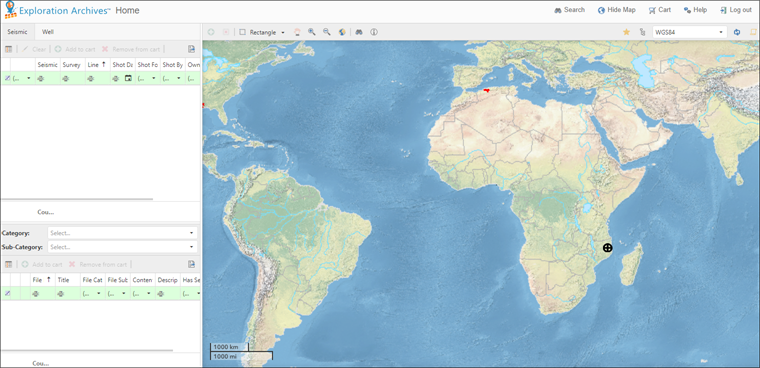
Select Browser Version:
There are two ways to open Browser:
-
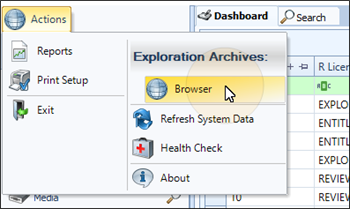
From the Actions menu in desktop.
If configured, you can open Browser by selecting it from the Actions Menu.
-
Using Google Chrome®, Microsoft Edge® or Mozilla® Firefox®, open the web address (URL) provided to you by Talus.
If prompted to log in, enter your user name and password, which is case sensitive, and click Login.
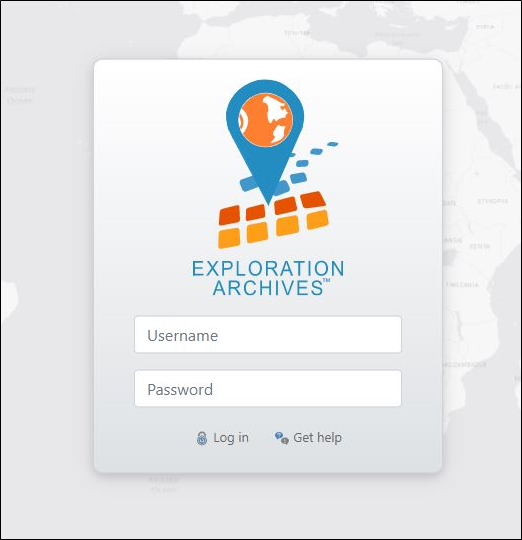
When logging into Browser, you may have 2 Factor Authentication enabled by your system administrator. If this is the case, you will have a code emailed to you
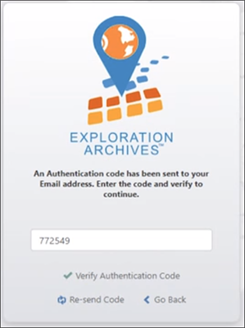
After entering your username and password, you will have a screen presented to enter the code emailed to you.
If your system uses Windows® Active Directory®, you will not be prompted to log in to Exploration Archives Browser.
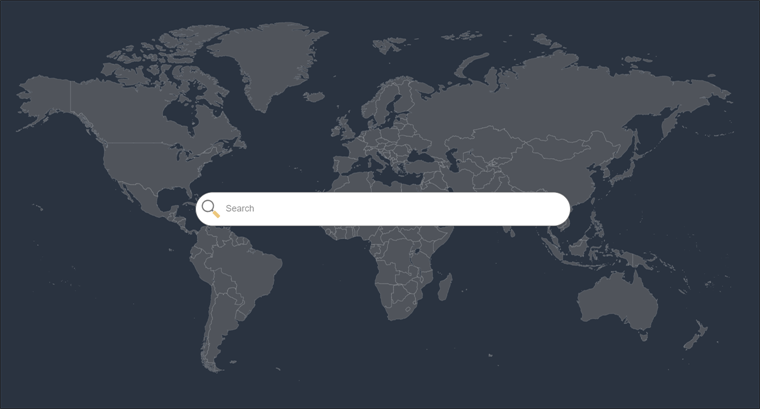
The landing page appears with a search bar.
There are two ways to open Browser:
-
From the Actions menu in desktop.
If configured, you can open Browser by selecting it from the Actions Menu.
-
Using Google Chrome®, Microsoft Edge® or Mozilla® Firefox®, open the web address (URL) provided to you by Talus.
If prompted to log in, enter your user name and password, which is case sensitive, and click Login.
When logging into Browser, you may have 2 Factor Authentication enabled by your system administrator. If this is the case, you will have a code emailed to you
After entering your username and password, you will have a screen presented to enter the code emailed to you.
If your system uses Windows® Active Directory®, you will not be prompted for a user name or password.
Once you’re logged in, the browser will display a landing page, with a search bar to perform an initial search.