Select Version of EA Desktop:
The Business Associate module is where you can define a list of organizations you do business with. They can be associated to various records throughout Exploration Archives - seismic, wells, projects, data requests, licenses, etc.
 To add a new Business Associate:
-
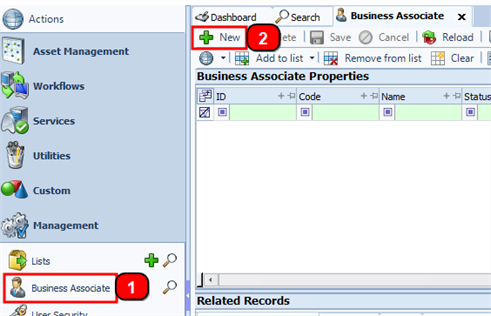
In the Navigation panel, expand the Management section, then click Business Associate. a new tab will open in the workspace.
-
Click New
The Create Business Associate panel that opens is split into 2 sections:
The top section is where you enter information about the Organization:
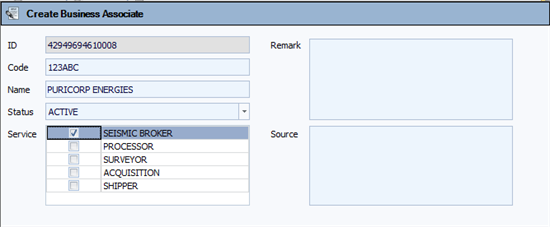
The ID field is auto-generated. The Code and Name fields are required.
Once you have defined the company information, you can add contacts associated with the Organization:
-
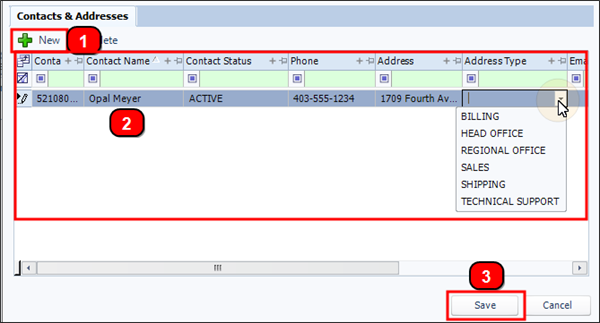
In the Contacts and Addresses tab, click New.
-
A new row appears in the grid. The Contact ID will be auto-generated.
Enter information for each column in the row by either:
-
Double-clicking in a cell and typing information in.
-
Using a drop-down list and selecting a value.
Repeat steps 1 & 2 to add any additional contacts.
-
-
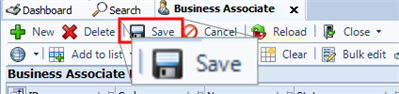
Once you have finished entering Company and Contact information click Save.
To edit an EXISTING Business Associate:
-
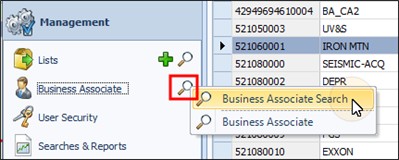
Find existing Business Associates by selecting the search icon beside the Business Associate option in the navigation panel.
-
Apply your search filter using one of the searches from the menu. The results will open in the Business Associate tab.
-
Select the Business Associate you want to edit.
-
The Contacts and Addresses tab will populate with existing contacts for the Organization
-
Edit information for each column in the row by either:
-
Double-clicking in a cell and typing information in.
-
Using a drop-down list and selecting a value.
-
-
When you have made all the changes, click Save on the toolbar.
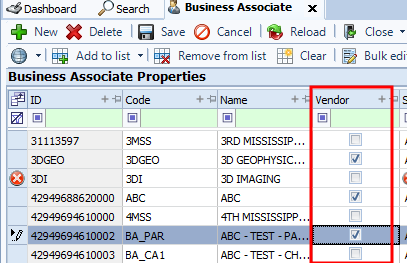
Once you have the Business Associate in the grid, you can set them as a Vendor by setting the check box located in the Vendor column.
The Business Associate module is where you can define a list of organizations you do business with. They can be associated to various records throughout Exploration Archives - seismic, wells, projects, data requests, licenses, etc.
To add a new Business Associate:
-
In the Navigation panel, expand the Management section, then click Business Associate. a new tab will open in the workspace.
-
Click New
The Create Business Associate panel that opens is split into 2 sections:
The top section is where you enter information about the Organization:
The ID field is auto-generated. The Code and Name fields are required.
Once you have defined the company information, you can add contacts associated with the Organization:
-
In the Contacts and Addresses tab, click New.
-
A new row appears in the grid. The Contact ID will be auto-generated.
Enter information for each column in the row by either:
-
Double-clicking in a cell and typing information in.
-
Using a drop-down list and selecting a value.
Repeat steps 1 & 2 to add any additional contacts.
-
-
Once you have finished entering Company and Contact information click Save.
To edit an EXISTING Business Associate:
-
Find existing Business Associates by selecting the search icon beside the Business Associate option in the navigation panel.
-
Apply your search filter using one of the searches from the menu. The results will open in the Business Associate tab.
-
Select the Business Associate you want to edit.
-
The Contacts and Addresses tab will populate with existing contacts for the Organization
-
Edit information for each column in the row by either:
-
Double-clicking in a cell and typing information in.
-
Using a drop-down list and selecting a value.
-
-
When you have made all the changes, click Save on the toolbar.