Select Version of EA Desktop:
Creating a new user profile for Exploration Archives requires administrative access.
To create a new user:
-
In the navigation panel of Exploration Archives, open the Management category and click User Security. The User Security module opens in the workspace.
-
In the main toolbar, click New User. The Create New System User window opens.
Exploration Archives can use two forms of authentication, depending on your setup.
Click to expand the login method your organization uses:
 Microsoft® Windows® authentication
-
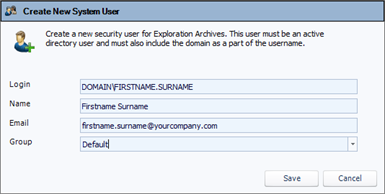
In the Login field, enter the Microsoft® Windows® user authentication credentials.
-
In the Name field, enter the user's name
-
In the Email field, enter the user's full email address.
-
The Group field determines the Dashboard widgets that will display for the user.
If you are using SQL, the group must have access to SQL.
Server authentication
 MadCap:conditions="Housekeeping.ExcludeForChatbot"
-
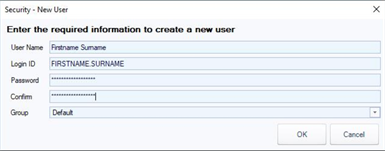
In the User Name field, enter the name of the user.
-
In the Login ID field, enter the user's first name and surname (separated by a space):
-
In the Password field, enter a password for the first login. Confirm the password in the next field.
-
The Group field determines the Dashboard widgets that will display for the user.
Click Save and a new row adds to the Users grid with the new user information.
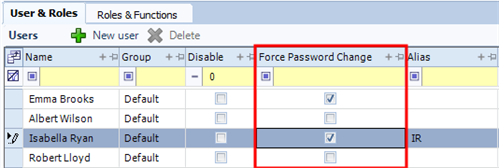
You can force users to change their password by selecting the checkbox in the Force Password Change column for the user.
After creating the user, the Administrator must assign the role(s).
To assign the role(s):
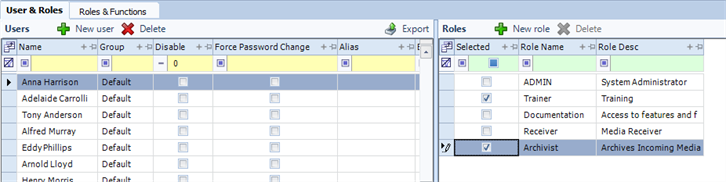
- Select the new user in the Users grid.
- In the Roles grid, select the checkboxes for the roles to assign to the new user. .
- Click Save. The user now has the ability to access Exploration Archives according to the parameters of role.
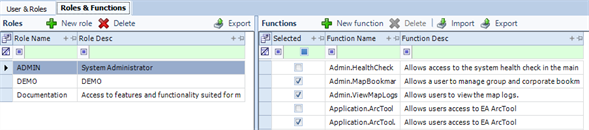
To view the functions that are associated to a role, click the Roles & Functions tab.
Click a role in the Roles grid and the associated functions display in the Functions grid. The functions selected indicate the permissions that a user with that role will have.
The functions assigned to a role affect all users.
-
In the navigation panel of Exploration Archives, open the Management category and click User Security. The User Security module opens in the workspace.
-
In the main toolbar, click New. The Create New System User window opens.
Exploration Archives can use two forms of authentication, depending on your setup.
Click to expand the login method your organization uses:
Microsoft® Windows® authentication
-
In the Login field, enter the Microsoft® Windows® user authentication credentials.
-
In the Name field, enter the user's name
-
In the Email field, enter the user's full email address.
-
The Group field determines the Dashboard widgets that will display for the user.
Server authentication
MadCap:conditions="Housekeeping.ExcludeForChatbot"
-
In the User Name field, enter the name of the user.
-
In the Login ID field, enter the user's first name and surname (separated by a space):
-
In the Password field, enter a password for the first login. Confirm the password in the next field.
-
The Group field determines the Dashboard widgets that will display for the user.
Click Save and a new row adds to the Users grid with the new user information.
You can force users to change their password by selecting the checkbox in the Force Password Change column for the user.
After creating the user, the Administrator must assign the role(s).
To assign the role(s):
- Select the new user in the Users grid.
- In the Roles grid, select the checkboxes for the roles to assign to the new user. .
- Click Save. The user now has the ability to access Exploration Archives according to the parameters of role.
To view the functions that are associated to a role, click the Roles & Functions tab.
Click a role in the Roles grid and the associated functions display in the Functions grid. The functions selected indicate the permissions that a user with that role will have.
The functions assigned to a role affect all users.