Select Version of EA Desktop:
The Files panel of a Catalog lists all the files attached to it.
Files can also be attached to existing contracts.
To link a file to a Contract in the Catalog Module:
-
In the Catalog Properties panel, double-click on a catalog to open it in a new tab.
-
Once the catalog is open, select a file or multiple files in the Files panel.
-
Right-click the selected files to open the context menu. Select Additional Tools>Link to contracts.
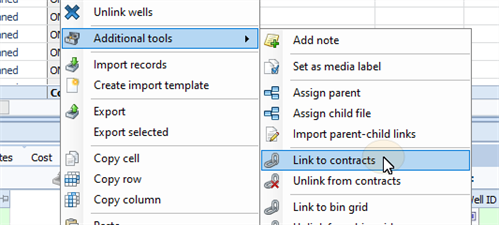
The Link to Contracts window opens.
-
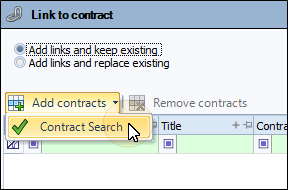
In the Link to contract window select Contract Search from the Add Contracts drop-down.
-
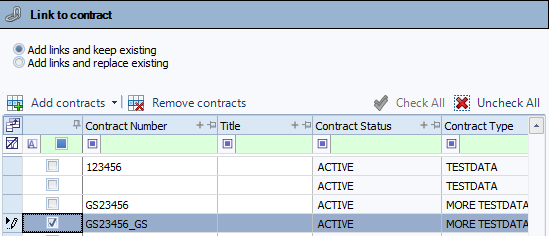
Enter your search criteria, then click Search. The results will populate the grid in the Link to contracts window.
-
From the results, select the check box next to the contracts to be linked.
 Tip:
Tip:You can also click Check All to select all the contracts in the list.
-
Select the option to either add links and keep existing or to add links and replace existing for the selected files.
-
Click Save.
-
The contracts will appear under the Contracts tab in the Related Records panel for each file that was selected.