Select Version of EA Desktop:
Project Tracker provides complete visibility for organizing and monitoring seismic projects including acquisitions, licenses, processing and other custom types specific to your company requirements.
Project Tracker provides quick linking to existing data and cross-module updating.
Understanding the screen layout
-
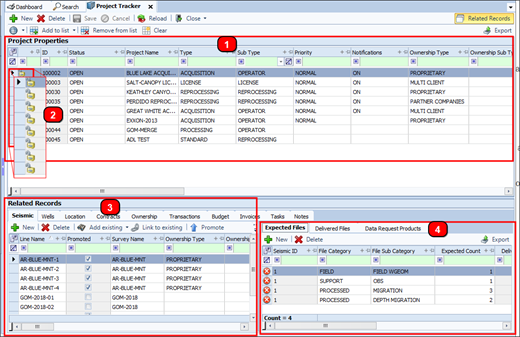
Project Properties: This grid lists each project with associated detail in various columns.
-
Soft Lock: Project Tracker incorporates a soft-lock feature that prevents simultaneous editing from more than one user,.
The leader column of a row displays the lock status for the project.
-
An unlocked project is available for you to edit details in the Project Properties grid or the Related Records.
-
When you begin to edit an unlocked project, you obtain the lock and others see that the project has a soft-lock.
-
-
Related Records: Displays the data details and administrative information regarding a selected project.
-
The Seismic tab in the Related Records panel includes a secondary panel for monitoring the progress of the project deliverables.
This Panel is divided into the following tabs:
-
Expected Files: A list of files that are expected to be delivered for the selected seismic.
-
Delivered Files: The Delivered files tab will list files in the linked Catalog. When the session is set to Uploaded, users can edit the details with Edit Workstation
-
Data Request Products: This grid displays all the items from Data Requests.
Project Tracker provides complete visibility for organizing and monitoring seismic projects including acquisitions, licenses, processing and other custom types specific to your company requirements.
Project Tracker provides quick linking to existing data and cross-module updating.
-
Added a tool to allow adding of an existing Contract to a Project.
-
Added an Import tool for expected files and expected media.
Understanding the screen layout
-
Project Properties: This grid lists each project with associated detail in various columns.
-
Soft Lock: Project Tracker incorporates a soft-lock feature that prevents simultaneous editing from more than one user,.
The leader column of a row displays the lock status for the project.
-
An unlocked project is available for you to edit details in the Project Properties grid or the Related Records.
-
When you begin to edit an unlocked project, you obtain the lock and others see that the project has a soft-lock.
-
-
Related Records: Displays the data details and administrative information regarding a selected project.
-
The Seismic tab in the Related Records panel includes a secondary panel for monitoring the progress of the project deliverables.
This Panel is divided into the following tabs:
-
Expected Files: A list of files that are expected to be delivered for the selected seismic.
-
Delivered Files: The Delivered files tab will list files in the linked Catalog. When the session is set to Uploaded, users can edit the details with Edit Workstation
-
Data Request Products: This grid displays all the items from Data Requests.
Project Tracker provides complete visibility for organizing and monitoring seismic projects including acquisitions, licenses, processing and other custom types specific to your company requirements.
Project Tracker provides quick linking to existing data and cross-module updating.
Understanding the screen layout
-
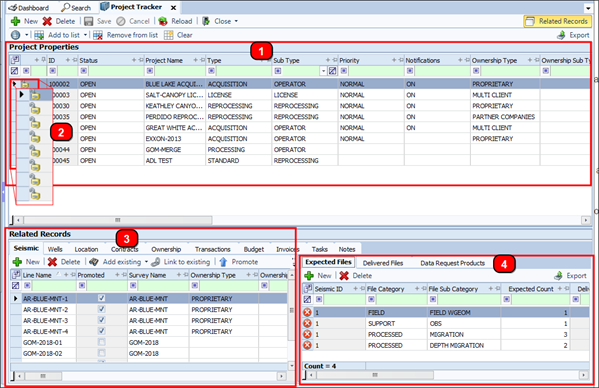
Project Properties: This grid lists each project with associated detail in various columns.
-
Soft Lock: Project Tracker incorporates a soft-lock feature that prevents simultaneous editing from more than one user.
The leader column of a row displays the lock status for the project.
-
An unlocked project is available for you to edit details in the Project Properties grid or the Related Records.
-
When you begin to edit an unlocked project, you obtain the lock and others see that the project has a soft-lock.
-
-
Related Records: Displays the data details and administrative information regarding a selected project.
-
The Seismic tab in the Related Records panel includes a secondary panel for monitoring the progress of the project deliverables.
This Panel is divided into the following tabs:
-
Expected Files: A list of files that are expected to be delivered for the selected seismic.
-
Delivered Files: The Delivered files tab will list files in the linked Catalog. When the session is set to Uploaded, users can edit the details with Edit Workstation
-
Data Request Products: This grid displays all the items from Data Requests.