Select Version of EA Desktop:
Once you have a Seismic attached to a project, you can attach deliverables.
To attach deliverables use one of the following methods:
 Use the Context Menu
-
In the Related Records panel select the seismic record in the Seismic tab.
-
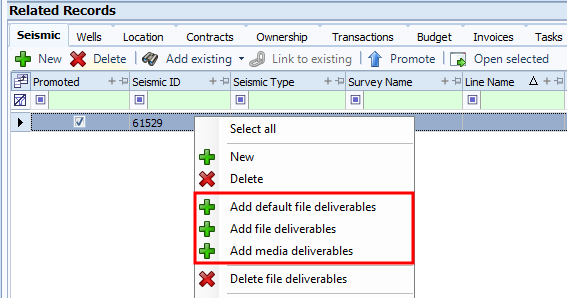
Right-click and select one of the deliverables options:
-
Add default file deliverables : This option adds the deliverables that have been configured to be automatically added to the expected files tab.
-
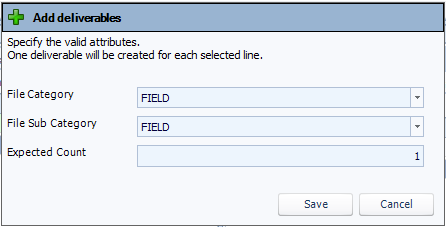
Add file deliverables: Select this option to open the Add deliverables dialogue.
-
Click Save.
-
Select the File Category and File Sub Category. Also enter the Expected Count.
-
Add media deliverables: Select this command and the Add deliverables dialogue opens.
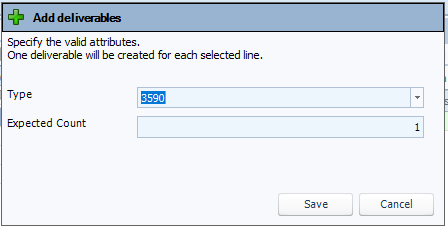
Select the Type from the drop-down list and enter the Expected Count.
-
Click Save.
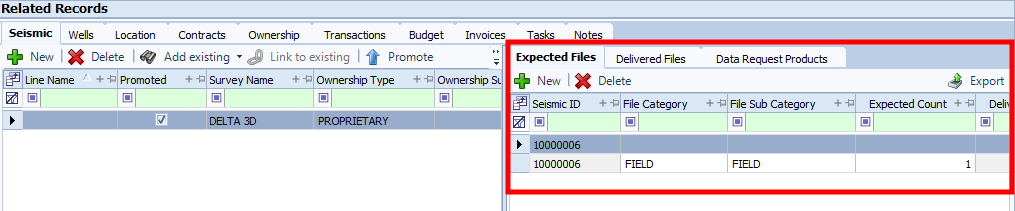
As deliverables are configured and saved you will notice that the deliverables will appear in the Expected Files tab that appears when a seismic is selected.
 .
.
Attach a Deliverable on the Grid
-
Select a Seismic record in the Related Records panel.
-
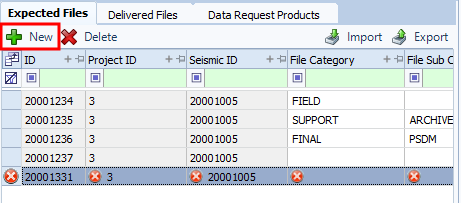
In the Expected Files tab, click New.
-
In the empty row that appears, enter each column from the drop-down lists or enter a value by double-clicking and typing in the cell.
-
When complete, click Save on the toolbar.
Import Expected Files from an Excel File
-
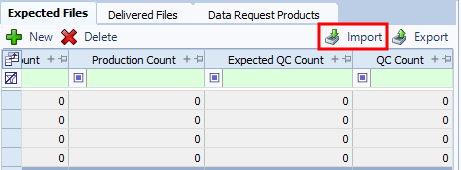
In the Expected Files tab, click Import.
-
In the File Explorer, navigate to the Excel file and select it.
Note:The Excel file must have valid column names, such as database column name, property name, and caption. The Import will also look for the "File Category" and "File Sub Category"
-
Click Open.
Before the import is complete, the following validation will happen:
-
When importing files, the category and sub-category must exist in the database. The sub-category must also be valid for the specified category.
-
When importing media, the media type must exist in the database.
-
-
When the import complete, click Save on the toolbar.
Once you have a Seismic attached to a project, you can attach deliverables.
To attach deliverables:
-
In the Related Records panel select the seismic record in the Seismic tab.
-
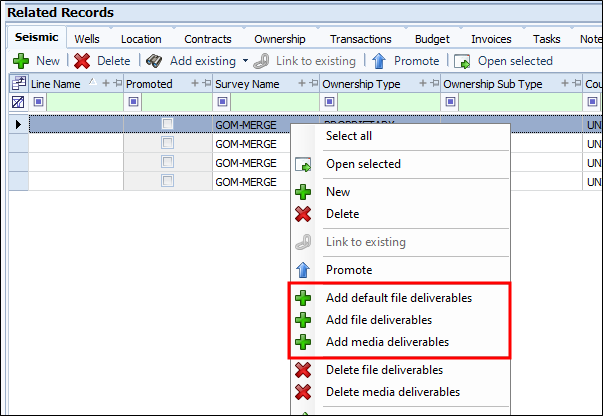
Right-click and select one of the deliverables options:
-
Add default file deliverables : This option adds the deliverables that have been configured to be automatically added to the expected files tab.
-
Add file deliverables: Select this option to open the Add deliverables dialogue.
-
Select the File Category and File Sub Category. Also enter the Expected Count.
-
Add media deliverables: Select this command and the Add deliverables dialogue opens.
Select the Type from the drop-down list and enter the Expected Count.
-
Click Save.
As deliverables are configured and saved you will notice that the deliverables will appear in the Expected Files tab that appears when a seismic is selected.
.