Select Version of EA Desktop:
This utility is used to compare licenses from one company to another. it’s used if a company buys another company to compare what licenses they have and give options to transfer/purchase the licenses that the old company owns.
To compare licenses between companies:
-
In the Navigation Panel select Utilties>License Compare.
-
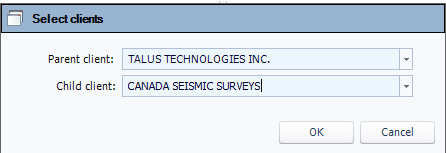
In the Select clients dialog, select both the Parent and Child companies from the drop-down lists.
-
Click OK. The License Compare work area will open, divided into 2 panels.. one for the Parent Company, and one for the child.
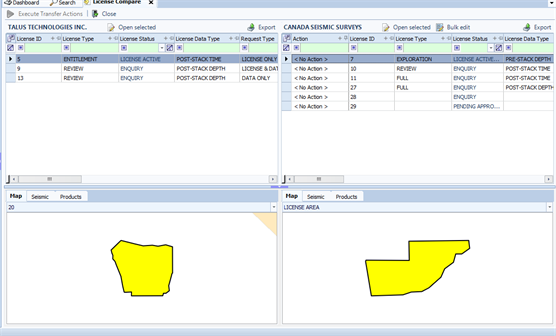
The top half of the panel shows the licenses attached to the company. The lower half shows the related records broken into tabs for the selected license.
Note:The lower panels are synced. When you select a tab in one panel, the other panel will change as well.
-
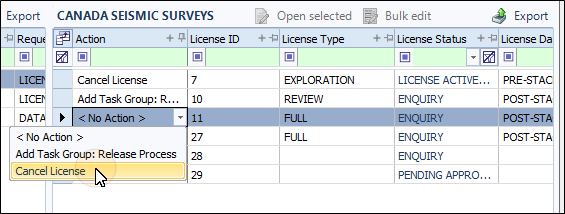
In the child tab select an action for a license in the Action column from the drop-down menu.
-
Once licenses have actions applied, click Execute Transfer Actions. This sends a set of tasks to a user to perform.