Select Version of EA Desktop:
The Seismic Merge utility lets you take a number of seismic and merge them together to create a new record.
This is useful when cleaning up the database, and there are duplicate records with slightly different information added.
To merge Seismic records:
-
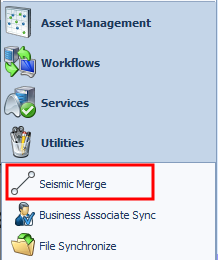
In the navigation panel, select Utilities>Seismic Merge
-
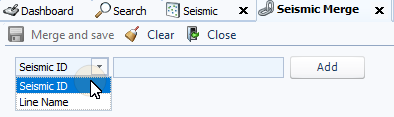
In the Seismic Merge tab, select the method to add Seismic records from the drop-down. You can add records by Seismic ID or Line Name.
-
Enter the criteria that you choose for the Seismic records separated by a comma.
There is a quick way to fill in the Seismic information in the records field:
-
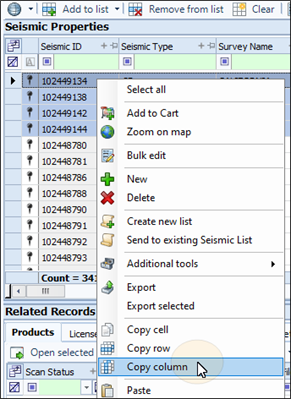
Open the Seismic module and select the Seismic records to merge from the Seismic Properties grid.
-
Hover over either the Seismic ID or Line Name column, then right-click and select Copy Column
Note:In our example, the values from the Seismic ID column will be copied from the selected records.
-
Click back onto the Seismic Merge tab, and click into the field.
-
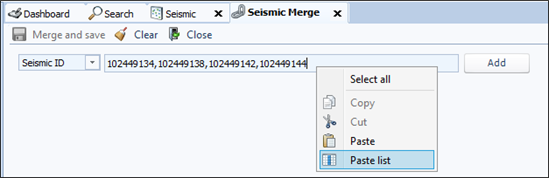
Right-click and select Paste List.
-
The Seismic IDs or Line Names will be pasted into the field separated by commas.
-
-
Click Add.
The Seismic records appear side by side in a column format, with an empty column representing the new record.
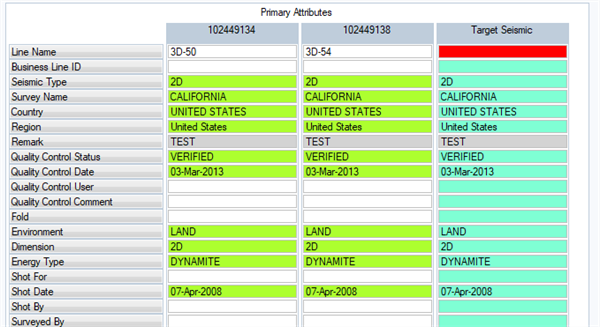
The rows that are green automatically carry over to the Target Seismic.
-
Cells that are Highlighted in RED need values entered.
-
Cells that can be edited will have an edit box appear in the right side. You can double-click the cell to enter text, or click the edit button.
-
You can transfer the values from one of the Seismic records to the Target Seismic by double-clicking in a cell.That value will be added to the Target Seismic.
-
You can also fill the values in from an entire Seismic Record by right-clicking in the Seismic Record and select Set Primary.
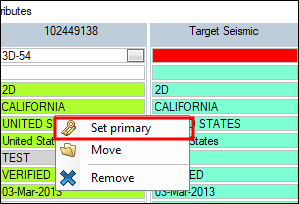
The values from that record will transfer over to the Target Seismic.
When finished, click Merge and Save. The Target Seismic will be assigned an ID when the merge is complete.
The Seismic Merge utility lets you take a number of seismic and merge them together to create a new record.
-
Line Name is no longer required.
-
Updated the “Seismic Merge utility” with the missing attributes from the Seismic table.
This is useful when cleaning up the database, and there are duplicate records with slightly different information added.
To merge Seismic records:
-
In the navigation panel, select Utilities>Seismic Merge
-
In the Seismic Merge tab, select the method to add Seismic records from the drop-down. You can add records by Seismic ID or Line Name.
-
Enter the criteria that you choose for the Seismic records separated by a comma.
There is a quick way to fill in the Seismic information in the records field:
-
Open the Seismic module and select the Seismic records to merge from the Seismic Properties grid.
-
Hover over either the Seismic ID or Line Name column, then right-click and select Copy Column
Note:In our example, the values from the Seismic ID column will be copied from the selected records.
-
Click back onto the Seismic Merge tab, and click into the field.
-
Right-click and select Paste List.
-
The Seismic IDs or Line Names will be pasted into the field separated by commas.
-
-
Click Add.
The Seismic records appear side by side in a column format, with an empty column representing the new record.
The rows that are green automatically carry over to the Target Seismic.
-
Cells that are Highlighted in RED need values entered.
-
Cells that can be edited will have an edit box appear in the right side. You can double-click the cell to enter text, or click the edit button.
-
You can transfer the values from one of the Seismic records to the Target Seismic by double-clicking in a cell.That value will be added to the Target Seismic.
-
You can also fill the values in from an entire Seismic Record by right-clicking in the Seismic Record and select Set Primary.
The values from that record will transfer over to the Target Seismic.
When finished, click Merge and Save. The Target Seismic will be assigned an ID when the merge is complete.
The Seismic Merge utility lets you take a number of seismic and merge them together to create a new record.
This is useful when cleaning up the database, and there are duplicate records with slightly different information added.
To merge Seismic records:
-
In the navigation panel, select Utilities>Seismic Merge
-
In the Seismic Merge tab, select the method to add Seismic records from the drop-down. You can add records by Seismic ID or Line Name.
-
Enter the criteria that you choose for the Seismic records separated by a comma.
There is a quick way to fill in the Seismic information in the records field:
-
Open the Seismic module and select the Seismic records to merge from the Seismic Properties grid.
-
Hover over either the Seismic ID or Line Name column, then right-click and select Copy Column
Note:In our example, the values from the Seismic ID column will be copied from the selected records.
-
Click back onto the Seismic Merge tab, and click into the field.
-
Right-click and select Paste List.
-
The Seismic IDs or Line Names will be pasted into the field separated by commas.
-
-
Click Add.
The Seismic records appear side by side in a column format, with an empty column representing the new record.
The rows that are green automatically carry over to the Target Seismic.
-
Cells that are Highlighted in RED need values entered.
-
Cells that can be edited will have an edit box appear in the right side. You can double-click the cell to enter text, or click the edit button.
-
You can transfer the values from one of the Seismic records to the Target Seismic by double-clicking in a cell.That value will be added to the Target Seismic.
-
You can also fill the values in from an entire Seismic Record by right-clicking in the Seismic Record and select Set Primary.
The values from that record will transfer over to the Target Seismic.
When finished, click Merge and Save. The Target Seismic will be assigned an ID when the merge is complete.