Select Version:
The main seismic attributes do not update when loading additional geometry.
To load data as additional geometry to Exploration Archives, the metadata definitions must be set correctly. Use the grid in the Load Navigation Data window to specify details. To specify the same metadata for multiple records, use Bulk Edit. Click Edit All or Edit Selected to open the Bulk Edit window and enter the information in the appropriate fields.
Some of the categories include:
- Status: Displays the status of your data load.
- Status Message: Provides additional status information.
- Geometry Process: Select the process to use for loading additional geometry (Skip, Create Set or Replace Set).
- Seismic ID: Enter the ID in the Seismic ID column and click out of the field. If a red x displays, the ID does not exist.
- Geometry Set: Auto-populates if you are creating a new additional geometry set (Geometry Process is set to Create Set).
- Geometry Set Type: Select the type of geometry.
- InLine and X Line: If you mapped the InLine and X Line values in the previous window, the new additional geometry set will include the inline and crossline with the update. However, since you are creating or replacing additional geometry, the main seismic attributes inline and crossline minimums, maximums, counts and increments do not update.
- Note: Details entered in the Note field display in the Seismic module of Exploration Archives (Note tab in Related Records).
Selecting a Process for additional geometry
Tools for ArcMap provides processing types for creating additional geometry, replacing geometry sets, and skipping seismic when loading data.
Select the appropriate process for each item:
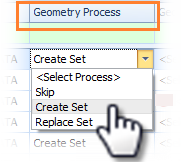
- Skip: Omits the seismic during the data load.
- Create Set: Creates a new additional geometry set for the seismic specified.
- Replace Set: Replaces an additional geometry set.
The main seismic attributes do not update when loading additional geometry.
To load data as additional geometry to Exploration Archives, the metadata definitions must be set correctly. Use the grid in the Load Navigation Data window to specify details. To specify the same metadata for multiple records, use Bulk Edit. Click Edit All or Edit Selected to open the Bulk Edit window and enter the information in the appropriate fields.
Some of the categories include:
- Status: Displays the status of your data load.
- Status Message: Provides additional status information.
- Geometry Process: Select the process to use for loading additional geometry (Skip, Create Set or Replace Set).
- Seismic ID: Enter the ID in the Seismic ID column and click out of the field. If a red x displays, the ID does not exist.
- Geometry Set: Auto-populates if you are creating a new additional geometry set (Geometry Process is set to Create Set).
- Geometry Set Type: Select the type of geometry.
- InLine and X Line: If you mapped the InLine and X Line values in the previous window, the new additional geometry set will include the inline and crossline with the update. However, since you are creating or replacing additional geometry, the main seismic attributes inline and crossline minimums, maximums, counts and increments do not update.
- Note: Details entered in the Note field display in the Seismic module of Exploration Archives (Note tab in Related Records).
Selecting a Process for additional geometry
Navigation Loader provides processing types for creating additional geometry, replacing geometry sets, and skipping seismic when loading data.
Select the appropriate process for each item:
- Skip: Omits the seismic during the data load.
- Create Set: Creates a new additional geometry set for the seismic specified.
- Replace Set: Replaces an additional geometry set.