Select Version:
The second step for loading navigation with Exploration ArchivesNavigation Loader is to further define the metadata. Metadata is the underlying definition of your data and makes it easier to find and work with in Exploration Archives.
The grid that populates at this step has columns with data categories specific for your company. Use the fields in the grid to perform individual edits for the categories. For bulk edits, use Edit All or Edit Selected.
A red x indicates required fields and data errors. Add the required information and correct any errors.
 To customize the grid...
-
Drag and drop column headers to your preferred locations.
-
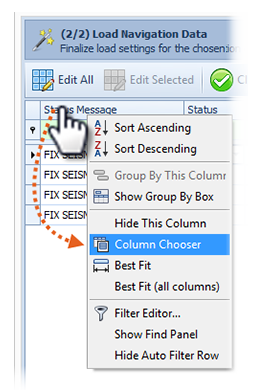
Right-click on the header row to select the Column Chooser.
-
Right-click on the header row to view additional grid layout options.
-
Click and drag the lower right corner to resize the window.
To perform bulk edits...
If you have multiple records that require the same edits, select each row and click Edit Selected. To edit all records in the grid click Edit All.
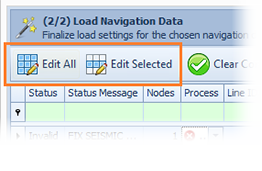
The Bulk Edit window opens.
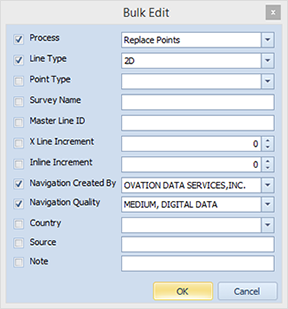
Check the data categories you want to edit and select or enter the new detail.
The second step for loading navigation with Exploration Archives Navigation Loader is to further define the metadata. Metadata is the underlying definition of your data and makes it easier to find and work with in Exploration Archives.
The grid that populates at this step has columns with data categories specific for your company. Use the fields in the grid to perform individual edits for the categories. For bulk edits, use Edit All or Edit Selected.
A red x indicates required fields and data errors. Add the required information and correct any errors.
To customize the grid...
-
Drag and drop column headers to your preferred locations.
-
Right-click on the header row to select the Column Chooser.
-
Right-click on the header row to view additional grid layout options.
-
Click and drag the lower right corner to resize the window.
To perform bulk edits...
If you have multiple records that require the same edits, select each row and click Edit Selected. To edit all records in the grid click Edit All.
The Bulk Edit window opens.
Check the data categories you want to edit and select or enter the new detail.
The second step for loading navigation with Exploration Archives Tools for ArcMap® is to further define the metadata. Metadata is the underlying definition of your data and makes it easier to find and work with in Exploration Archives.
The grid that populates at this step has columns with data categories specific for your company. Use the fields in the grid to perform individual edits for the categories. For bulk edits, use Edit All or Edit Selected.
A red x indicates required fields and data errors. Add the required information and correct any errors.
To customize the grid...
-
Drag and drop column headers to your preferred locations.
-
Right-click on the header row to select the Column Chooser.
-
Right-click on the header row to view additional grid layout options.
-
Click and drag the lower right corner to resize the window.
To perform bulk edits...
If you have multiple records that require the same edits, select each row and click Edit Selected. To edit all records in the grid click Edit All.
The Bulk Edit window opens.
Check the data categories you want to edit and select or enter the new detail.
The fields and processes for setting the metadata for primary geometry and additional geometry sets are specific for each set.
For primary geometry, refer to Define primary geometry.
For additional geometry refer to Defining additional geometry.