Select Version of EA Desktop:
The information areas of a data request include:
- Details: General details and logistics of the data request
- Deliver To: Delivery details including destination and checkout information
- Data Sale: Sales and licensing information
Select a heading below to expand the information for the section you are filling out.
 Entering Details information
In the Details section of the Data Request module, enter the relevant information.
The Request ID and Request Status are auto-generated and cannot be edited.
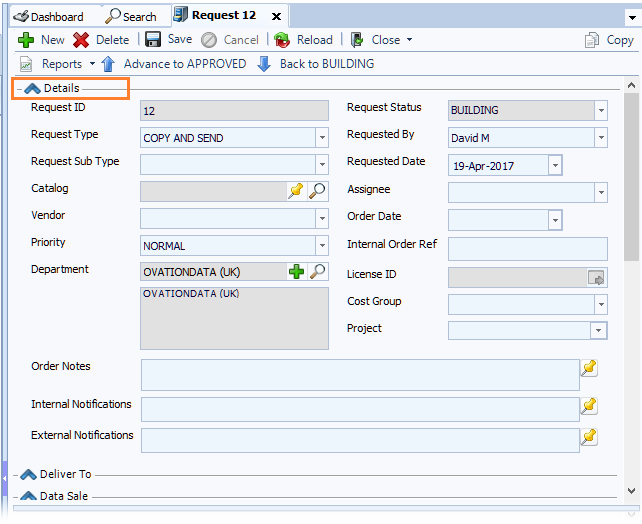
Most of the fields require pre-defined detail that is available in the drop-down options for each field. Select each option as appropriate.
In the Department field, the drop-down opens a grid with your business associate library. Locate the department and click to select. The department name and contact information populate in the associated fields.
If your business contact is not available in the Department drop-down, you can add a new business associate. Click add and the Business Associate tab will open for you to enter the information.
Be sure to enter detail for the fields that are required by your company procedures.
When complete, click Save.
Entering Deliver To information
In the Deliver To section of the Data Request module, enter the relevant information and add notes if required.
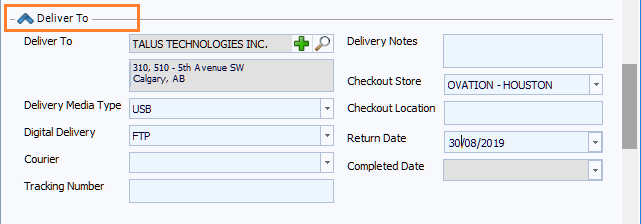
If your business contact is not available in the Deliver To drop-down, you can add a new business associate. Click add and the Business Associate tab will open for you to enter the information.
When complete, click Save.
Entering Data Sale information
The Data Sale section is available to use for a data request that is a sales transaction.
Enter the relevant information and click Save.
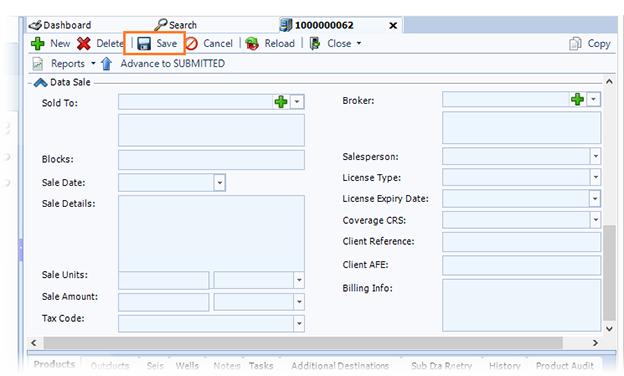
If your business contact is not available in the Sold To or the Broker dropdowns, you can add a new business associate. Click add and the Business Associate tab will open for you to enter the information.
The information areas of a data request are divided into 3 tabs:
- Details: General details and logistics of the data request
- Deliver To: Delivery details including destination and checkout information
- Data Sale: Sales and licensing information
Select a heading below to expand the information for the section you are filling out.
Entering Details information
In the Details section of the Data Request module, enter the relevant information.
The Request ID and Business ID are auto-generated and cannot be edited.
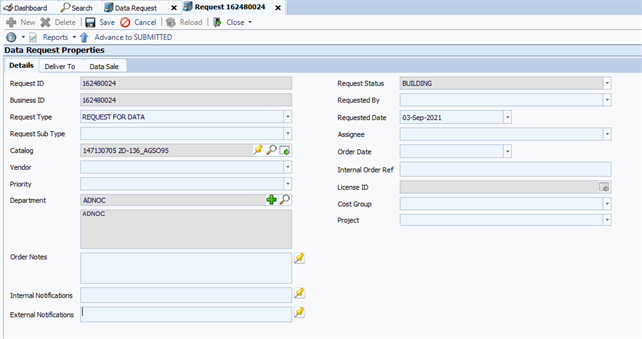
Most of the fields require pre-defined detail that is available in the drop-down options for each field. Select each option as appropriate.
In the Department field, the drop-down opens a grid with your business associate library. Locate the department and click to select. The department name and contact information populate in the associated fields.
If your business contact is not available in the Department drop-down, you can add a new business associate. Click add and the Business Associate tab will open for you to enter the information.
Be sure to enter detail for the fields that are required by your company procedures.
When complete, click Save.
Entering Deliver To information
In the Deliver To section of the Data Request module, enter the relevant information and add notes if required.
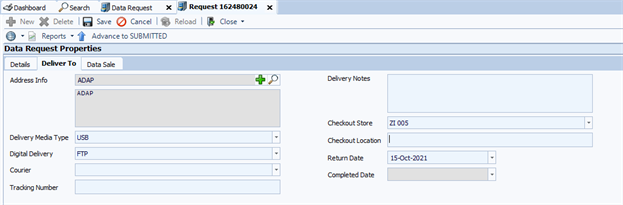
If your business contact is not available in the Deliver To drop-down, you can add a new business associate. Click add and the Business Associate tab will open for you to enter the information.
When complete, click Save.
Entering Data Sale information
The Data Sale section is available to use for a data request that is a sales transaction.
Enter the relevant information and click Save.
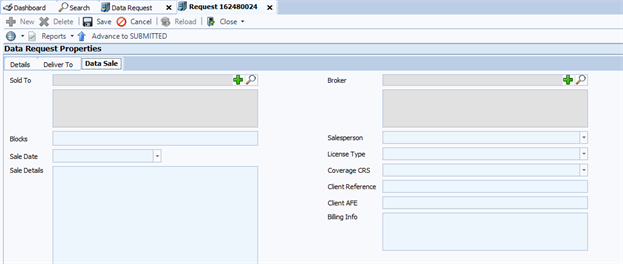
If your business contact is not available in the Sold To or the Broker dropdowns, you can add a new business associate. Click add and the Business Associate tab will open for you to enter the information.