Select Version of EA Desktop:
The Seismic module includes a calculation tool that populates license fees for seismic that is for sale. The fees calculate according the prices set for the survey in the Seismic module.
To set the license price:
-
Select the record in the Seismic module.
-
Locate the license price columns in the main grid.
Note: If the license price columns are not in the grid, use the Column Chooser to add them.
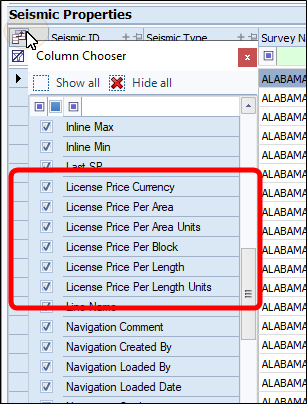
Click the column chooser icon (upper left corner of the grid) to open the list of available columns. Drag and drop the license columns from the Column Chooser to the grid.
-
Enter the license price details for each column, as applicable:
Note: When entering values that require a decimal amount you need to type the decimal.
Licence Price Currency This is a drop-down list where you can select the currency the License Price is in. License Price Per Area Double-click in this cell to enter an amount that reflects the cost of the license per area. License Price Per Area Units This field is a drop-down list that allows you to select the units of measurement for the License per Area. License Price Per Block Double-click in this cell to enter an amount for the License price per block of land. License Price Per Length Double-click in this cell to enter an amount for the License price per length of land. License Price Per Length Units This is a drop-down list that lets your select the units of measurement -
Click Save.
The License module includes a calculation tool that populates license fees for seismic that is for sale. The fees calculate according the prices set for the survey in the Seismic module.
To set the license price:
-
Select the record in the Seismic module.
-
Locate the license price columns in the main grid.
Note: If the license price columns are not in the grid, use the Column Chooser to add them.
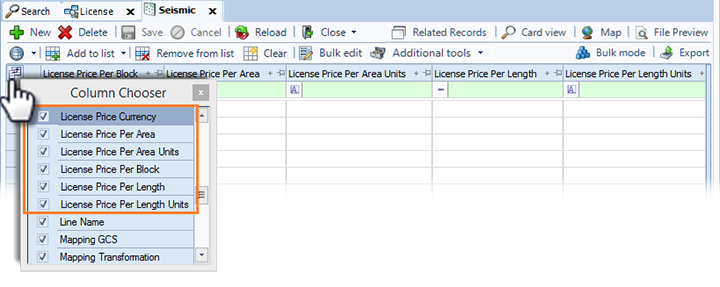
Click the column chooser icon (upper left corner of the grid) to open the list of available columns. Drag and drop the license columns from the Column Chooser to the grid.
-
Enter the license price details for each column, as applicable:
Note: When entering values that require a decimal amount you need to type the decimal.
Licence Price Currency This is a drop-down list where you can select the currency the License Price is in. License Price Per Area Double-click in this cell to enter an amount that reflects the cost of the license per area. License Price Per Area Units This field is a drop-down list that allows you to select the units of measurement for the License per Area. License Price Per Block Double-click in this cell to enter an amount for the License price per block of land. License Price Per Length Double-click in this cell to enter an amount for the License price per length of land. License Price Per Length Units This is a drop-down list that lets your select the units of measurement -
Click Save.