Select Version of EA Desktop:
The document tool in the License module generates license-related documentation specific for your company. The templates use database tags to populate information into an editable Word document. Potential templates available may include License Contract, Data Delivery Details, Standard License Agreement, X,Y Listing, Data Request Details and any other custom configured template.
To generate a document:
-
Open the License module and locate the target license in the License Properties grid.
-
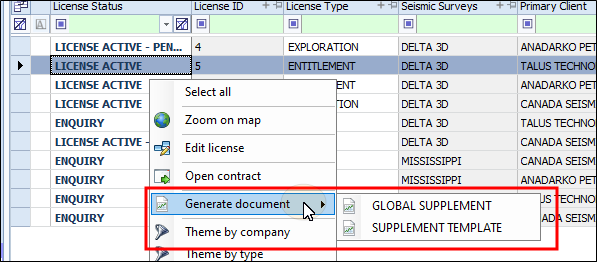
Right-click on the target license to open the context menu. Point to Generate document and thenbselect the template to use to generate the document.
A preview of the associated map images open in a new window.
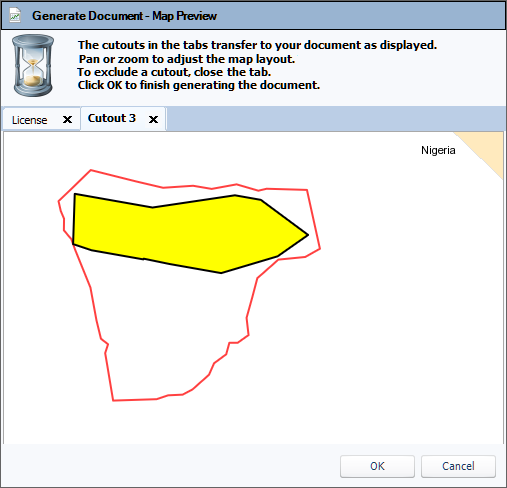
- In the preview window, the license and cutouts display in the tabs. Click each tab to view the images. Pan or zoom to edit the display of the image as appropriate. To omit an image from the document, click the X to close the tab.
- To generate the document, click OK. Microsoft Word opens with the license and cutout images and any other database tags as specified for the template. Edit as required.
The document tool in the License module generates license-related documentation specific for your company. The templates use database tags to populate information into an editable Word document. Potential templates available may include License Contract, Data Delivery Details, Standard License Agreement, X,Y Listing, Data Request Details and any other custom configured template.
To generate a document:
-
Open the License module and locate the target license in the License Properties grid.
-
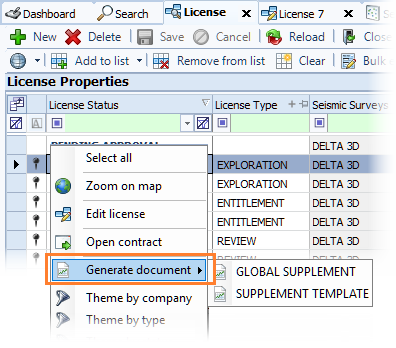
Right-click on the target license to open the context menu. Point to Generate document and select the template to use to generate the document.
A preview of the associated map images open in a new window.
- In the preview window, the license and cutouts display in the tabs. Click each tab to view the images. Pan or zoom to edit the display of the image as appropriate. To omit an image from the document, click the X to close the tab.
- To generate the document, click OK. Microsoft Word opens with the license and cutout images and any other database tags as specified for the template. Edit as required.