Select Version of EA Desktop:
-
The License Editor has been modified to use the new ESRI Geometry Editor.
-
The Map Selection tools and Cutout Tools have been updated to reflect the new Geometry Editor
The License module includes a full spectrum of options and resources to manage your data license workflow and monitor progress.
A variety of features and tools are available to create, modify and query data licenses.
The information you add to a license in Exploration Archives provides or initiates all the necessary deliverables for the transaction. The License module calculates fees according to the coverage area that you define using the cutout tool, while the document tool generates the contract and license documentation.
To generate a search and open items in the License module:
-
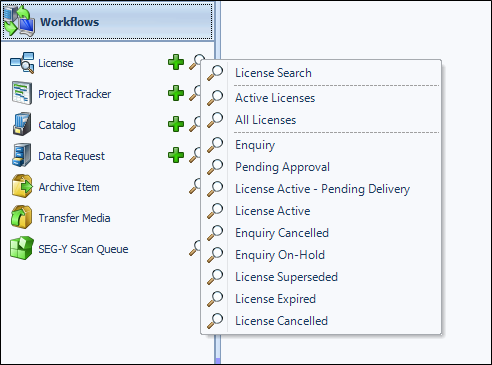
Click search next to License in the Navigation panel.
-
Select the appropriate search type and the search window will open
-
Enter your values and click Search.
The results open in the License module. The grid displays the information for each item. To view the Related Records for an item, click on a row in the grid and the associated details display in the Related Records tabs.
For information regarding status searches, refer to Understanding license statuses.
The License module includes a full spectrum of options and resources to manage your data license workflow and monitor progress. A variety of features and tools are available to create, modify and query data licenses.
The License module is accessible in the navigation panel under Workflows.
The information you add to a license in Exploration Archives provides or initiates all the necessary deliverables for the transaction. The License module calculates fees according to the coverage area that you define using the cutout tool, while the document tool generates the contract and license documentation.
To open items in the License module:
-
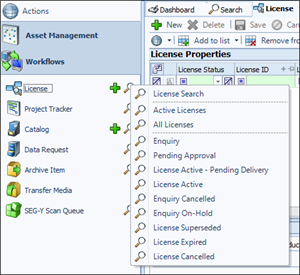
Click search next to License in the Navigation panel.
-
Select the appropriate search type and the search window will open
-
Enter your filter values and click Search.
The results open in the License module. The grid displays the information for each item. To view the Related Records for an item, click on a row in the grid and the associated details display in the Related Records tabs.
For information regarding status searches, refer to Understanding license statuses.