Select Version of EA Desktop:
The grid for defining an EBCDIC Template is located under Management in the System Settings.
In the System Settings drop-down options, select EBCDIC Template to open the configuration grid.
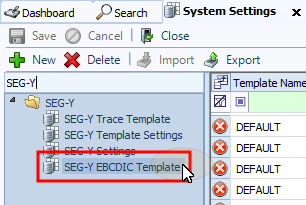
Each row in the template grid specifies one location for an information field to extract and write to the generated snapshot.
To add the locations of the EBCDIC information to extract:
-
Click New. A dialogue message opens for you to confirm if you want to use the template builder.
-
Click Yes. The template builder provides assistance with specifying the attribute locations.
Note:As an alternative you can enter the information manually in a new row. Click No if you want to add a new row and enter manually.
Using the EBCDIC Template builder:
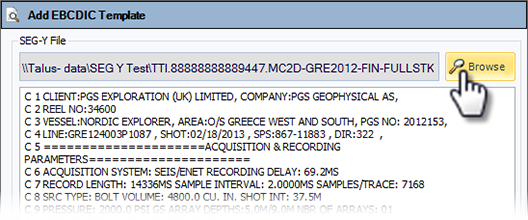
- In the Add EBCDIC Template window, click Browse.
- Browse to the location of your SEG-Y file, select and click Open. The text data adds to the template builder for viewing.
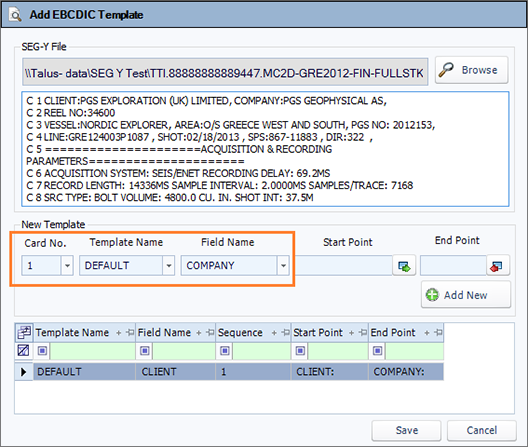
- The New Template area provides quick selection options to specify the data extraction locations. Select the Card No. for the attribute location.
- Assign the template pair by selecting the Template Name .
- Select the Field Name for the attribute.
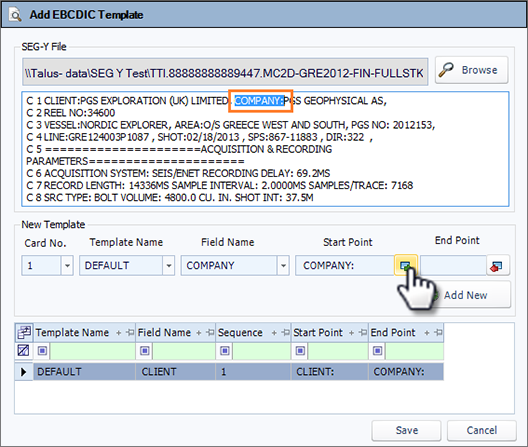
- To specify the character Start Point for extracting data, select the text in the viewer and click start point. The selected text pastes to the Start Point field. Repeat for the End Point.
- Click Add New.
- Repeat steps 3-7 to add all the extraction points. When complete, click Save.