Select Version of EA Desktop:
The grid for defining a Trace Template is located under Management in the System Settings.
In the System Settings select SEG-Y Trace Template to open the configuration grid.
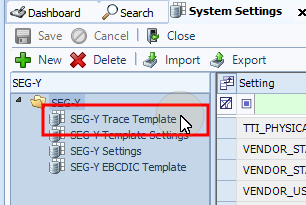
Each row in the template grid specifies one location for an information field to extract and write to the generated snapshot. The first several rows are pre-configured with typical attributes and their locations.
While a Trace Template can have many locations for extracting data, you must group the attributes in sets of 2 or 4.
There are a couple of scenarios to remember:
-
Where the byte locations are known:
A set of 2 is used for 2D and a set of 4 is used for 3D.
-
The Byte Locations are not known:
If you want a template to check multiple locations then pick the best, you should group the data:
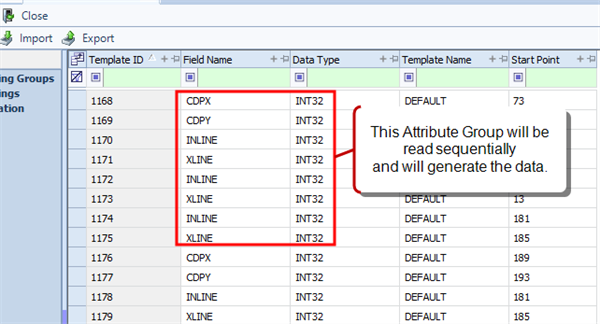
For 2D, you would use multiple sets of x/y pairs.
Be sure that the Run Trace in Auto Mode is selected in your SEG-Y Template Settings.
To list locations for multiple sets of data repeat the process for each grouping.
To add data locations:
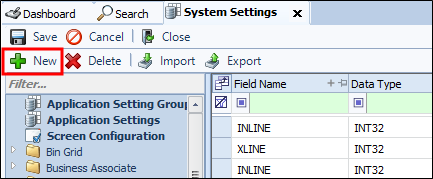
- Click New to add a new row to the grid.
- In the Field Name column, select the attribute .
- Select the Data Type.
- In the Template Name column, select the name of the template to assign the new attribute location.
- In the Start Point column, specify the beginning byte location. SEG-Y Scan calculates the end point automatically based on the data type.
- Click Save.
- Repeat steps 1-7 to add the remaining data location(s) for your attribute set. Repeat again to add a new set.
If you are adding more than one location for extracting data, be sure that the Run Trace in Auto Mode is selected in your SEG-Y Template Settings.