Select Version of EA Desktop:
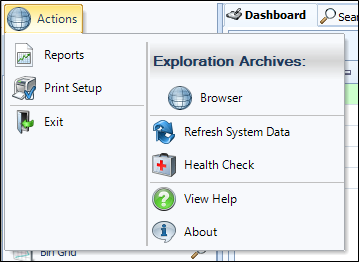
The Actions menu contains commands that are used within the application, with no association to a specific module.
Click Actions to display the available commands.
-
Reports: Opens the Reports module in the Workspace. The reports available to you are configured by your administrator.
-
Print Setup: Opens the Print configuration window to set printing specifications.
-
Exit: Click to close Exploration Archives.
Tip:Alternatively, you can click the “X” in the upper right corner of the application.
-
Browser: Opens the online version of Exploration Archivesin a new browser window.
-
Services: Opens the Services extension. This opens a web page that shows the results of services.
-
Refresh System Codes: Refreshes the content displaying in the application to reflect the content in the database.
Note:Each time you open Exploration Archives, the system codes refresh automatically. However, if your system administrator makes changes to the system codes while your application is open, you must perform a refresh for your current session to display the changes.
-
The Complete dialog opens when the refresh is complete.
-
View Help: Opens the support site in a new browser window.
-
About: Opens an information box that displays the Data Server source and the application version number.
-
Health Check: Opens the Health Check tool to validate the database and settings.
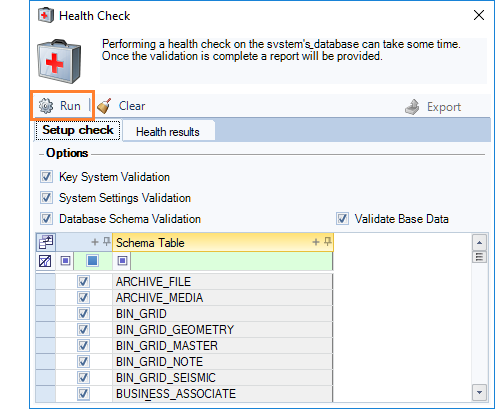
In the Health Check window, select the validation option(s) in the Options area. By default, all schema tables are selected. Uncheck any schema tables from the list to exclude from the validation. Click Run. The validation process begins. When complete, the report displays in the Health results tab. The Export option is available to export the report to Excel.