Select Version of EA Desktop:
Exploration Archives provides a comprehensive set of tools for managing and accessing your exploration assets. Your administrator sets the configurations and determines your level of access to the modules, tools, data and editing capabilities. With the role-based security, external partners, service providers and contractors are able to contribute to your data management projects.
Desktop layout
The Desktop screen is divided into two panels: the Navigation Panel and the Workspace, with various controls laid out.
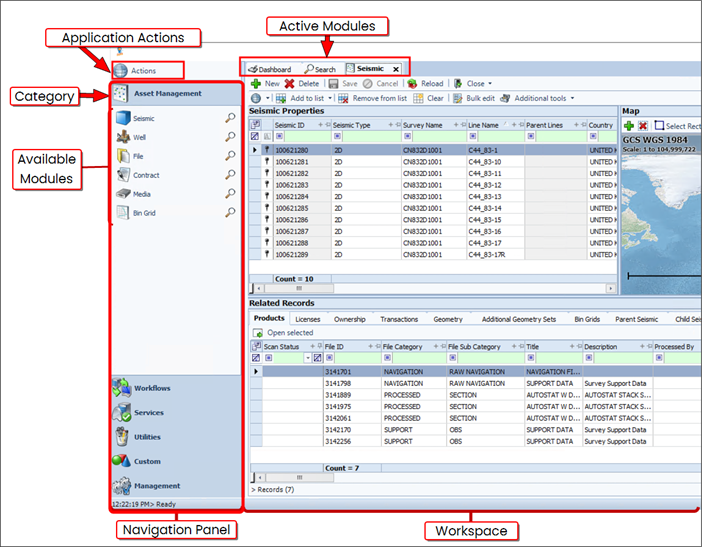
The Navigation Panel provides quick access to all areas of the application and remains constant throughout the application. To collapse the Navigation Panel and create a bigger Workspace, hover over the Panel adjustment and click when it changes colour. Click and drag the dividing line to re-size the panel.
Items in the Navigation Panel open in the Workspace:
The Asset Management modules will open in a new tab in the Workspace.
The Workflows search results display in the Search tab to view before opening. Double-click an item in the results to open the information within the associated Workflows module.
Each module displays information in a grid format with particular features and actions relevant to your workflow. The Seismic , Bin Grid and License modules include an interactive map and other visual elements.
Exploration Archives provides a comprehensive set of tools for managing and accessing your exploration assets. Your administrator sets the configurations and determines your level of access to the modules, tools, data and editing capabilities. With the role-based security, external partners, service providers and contractors are able to contribute to your data management projects.
Introducing Desktop layout
The Desktop screen is divided into two panes: the Navigation Panel and the Workspace.
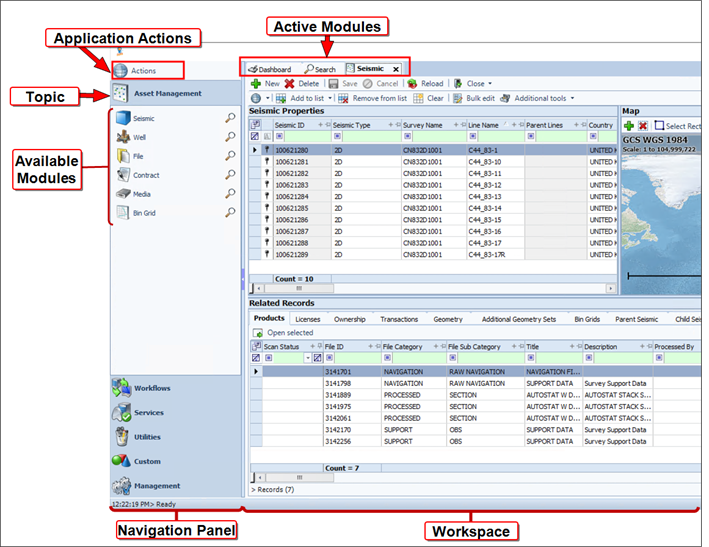
The Navigation Panel provides quick access to all areas of the application and remains constant throughout the application. To collapse the Navigation Panel and create a bigger Workspace, hover over the Panel adjustment and click when it changes colour. Click and drag the dividing line to custom set the panel size.
Items in the Navigation Panel open in the Workspace.
The Asset Management modules will open in a new tab in the Workspace.
The Workflows search results display in the Search tab to view before opening. Double-click an item in the results to open the information within the associated Workflows module.
Each module displays information in a grid format with particular features and actions relevant to your workflow. The Seismic , Bin Grid and License modules include an interactive map and other visual elements.