The cutout editor offers two views for working on a cutout: the default view and the fullscreen view.
Editor View as default
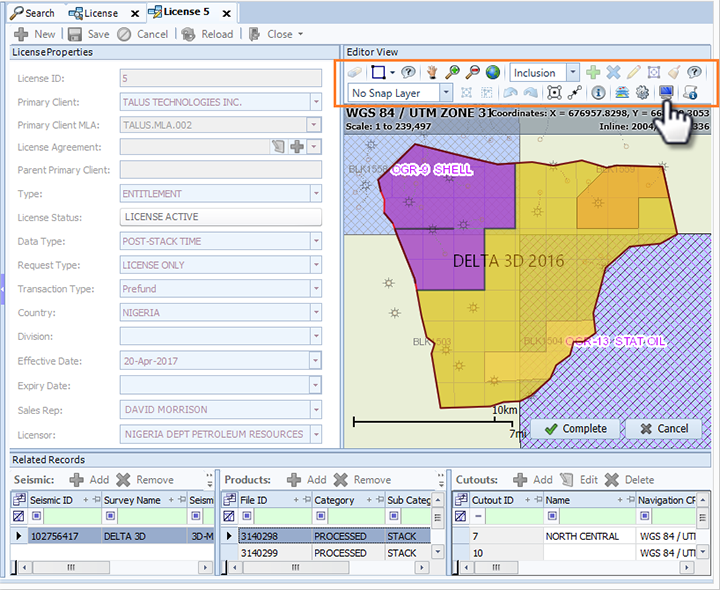
The default view maintains the layout of the Editor View with the License Properties area, the Related Records area and the map panel. The default view opens with the map zoomed to the selected survey and new items in the toolbar for working with cutouts.
Fullscreen view
The fullscreen view offers a workspace specifically designed for working with cutouts. The fullscreen view opens with specific toolbar items open by default. To open the fullscreen view, click fullscreen  in the map toolbar. The fullscreen view opens with the map in the centre panel with two cutout tools docked on each side; Layer Legend, Editor Settings, Selection Details and Cutout Details.
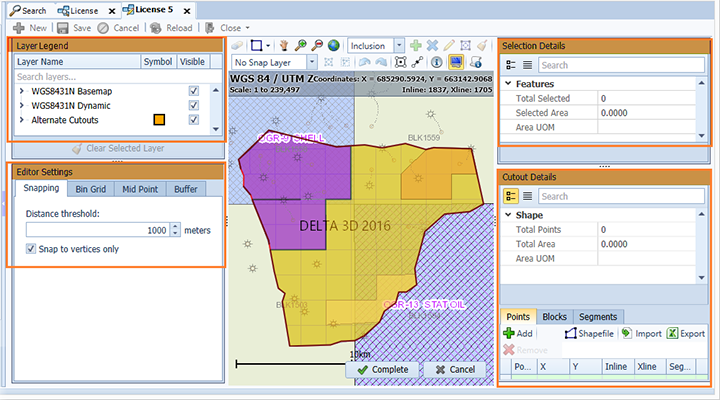
The same cutout-detail panes docked in fullscreen are accessible from the toolbar in the default view. In the default view, the panes open as floating windows over the map.
Access the panes in the default view using these toolbar items:
 Layer Legend: Opens the Layer Legend with ability to modify.
 Editor Settings: Open to specify the settings for snapping, bin grids, mid point and buffers.
 Selection Details: View details of the selection features.
 Cutout Details: View details of the cutout including point, block and segment detail.