After opening the Editor View for a cutout (Using the cutout editor), the map automatically zooms to the associated survey. For editing an existing cutout or adding a new one, the Cutout Editor displays a set of tools in the map toolbar specific for cutouts.
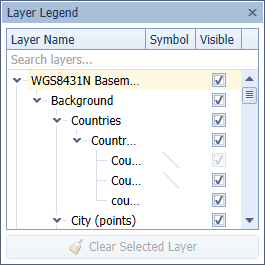
If you click fullscreen  in the map toolbar, the fullscreen view opens with specific toolbar items opened by default; Layer Legend, Editor Settings, Selection Details and Cutout Details. The fullscreen view omits those items from the toolbar, while the default view displays the items in the toolbar for you to open individually.
Toolbar in default view:

Toolbar in fullscreen view:

Cutout tools and functionality:

|
|
|
|
|

|
|
|
|
|

|
|
|
|

|
|

|
|

|
|

|
|
|
|

|
|

|
|

|
|

|
|
|
|
|

|
|

|
|

|
|

|
|
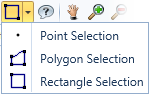
 the selection to the cutout.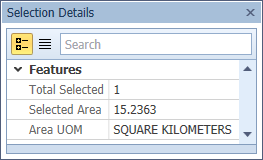
 .
.  .
.  . With this cursor, click and drag points to modify the cutout.
  Snaps all cutout points to the points of the selected layer.
  Snaps selected cutout points to the points of the selected layer.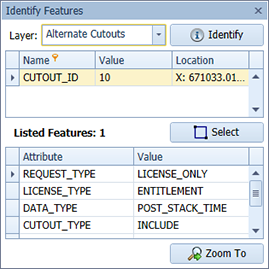
 . Click and drag to select features to identify. The