Select Version of EA Desktop:
The cutout editor is available from the Editor View of a license. Opening the Editor View is part of the steps in creating a new license (refer to Creating a license). Alternatively, you can open the Editor View from an existing license.
 To open the Editor View from an existing license...
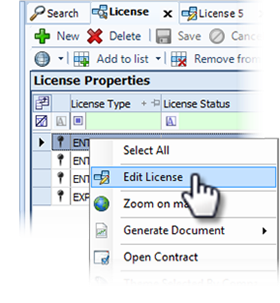
Locate the license in the License Properties grid of the License module. Right-click on the license to populate the context menu and click Edit License. The Editor View opens in a new tab and displays the license detail.
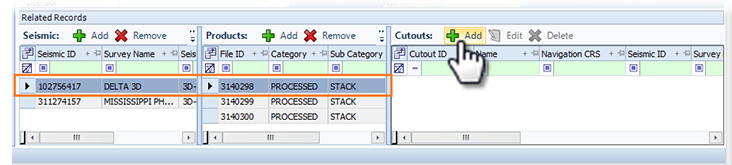
From the Editor View, select the originating seismic or product in the Related Records and click Add in the Cutout panel.
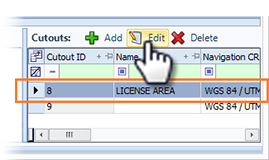
To edit an existing cutout, select the cutout in the Cutouts panel and click Edit.
To delete a cutout, select the cutout in the Cutouts panel and click Delete.
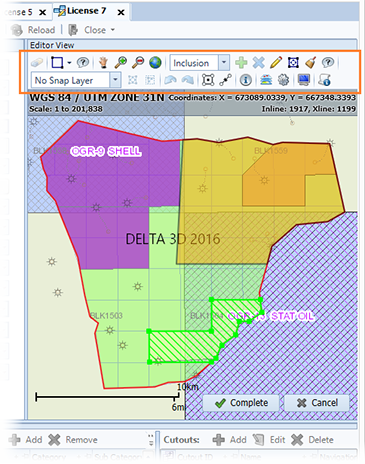
Whether adding a new cutout or editing an existing cutout, the cutout editor opens with a new set of tools in the map toolbar specific for cutouts. The map automatically zooms to the associated survey. For an existing cutout that you are editing, the survey displays with the cutout in a selected mode. In this screenshot, the cutout selected for editing displays with a green border.