Where the grid view displays multiple data records, Card View offers a compact view of data from a single row.
To open the single item view, select a target row in the Seismic grid and click Card view.

To open Card View:
-
Select a row in the grid.
-
Click Card view to toggle the view on.
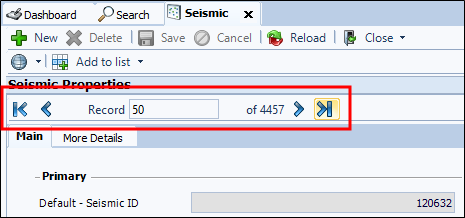
The highlighted record opens with the details displayed in the workspace. The Information is broken into two tabs; Main and More Details.
-
You can navigate between records by navigation arrows on the toolbar.
-
To edit details in a record, fill in the appropriate fields on the card.
Note: Depending on the purpose of the field and your security permissions, some fields may not be available for editing.
-
Once you have edited the information in the card, click Save.
-
To return to grid view, click Card view a second time to toggle it off.
Select Version of EA Desktop:
Where the grid view displays multiple data records, Card View offers a compact view of data from a single row.
To open the single item view, select a target row in the Seismic grid and click Card view.
To open Card View:
-
Select a row in the grid.
-
Click Card view to toggle the view on.
The highlighted record opens with the details displayed in the workspace. The Information is broken into two tabs; Main and More Details.
-
You can navigate between records by navigation arrows on the toolbar.
-
To edit details in a record, fill in the appropriate fields on the card.
Note: Depending on the purpose of the field and your security permissions, some fields may not be available for editing.
-
Once you have edited the information in the card, click Save.
-
To return to grid view, click Card view a second time to toggle it off.