Select Browser Version:
The search result grid in Exploration Archives Browser have custom formatting and filtering options to help target your search data.
After search results are in the grid, use the filter functions to refine how the detail displays.
The filter options are located just below the header bar.

Depending on the data contained in the column, there are different types of filters that can be applied:
-
Select from list: By Default, this filter is set to All. To filter the column, click in the cell and a list of options will appear. Select an option from the list.
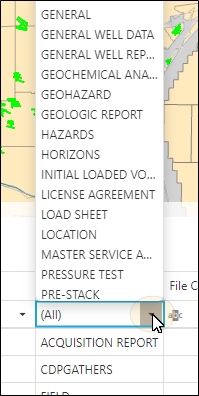
-
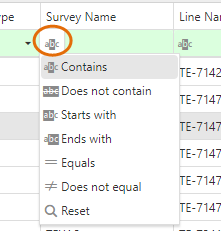
Boolean: With this type of filter you can enter a criteria and apply a Boolean expression.
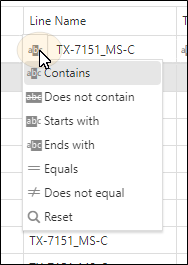
-
Date and Time: This type of filter allows you select a time and date to filter by. This also can hanve a boolean expression applied.
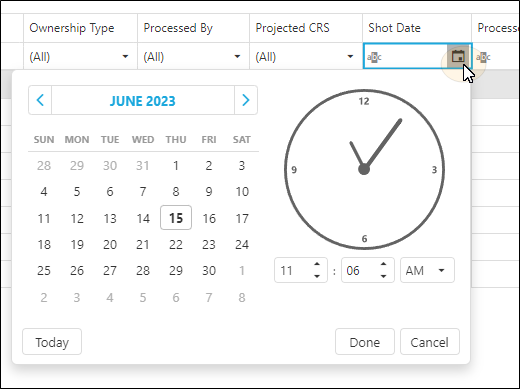
To quickly navigate the calendar to set the date, repeatedly click on the month/year to quickly select a month, year, or decade time frame.
Columns can be resized by clicking and dragging on the borders on the header. Place your pointer over the left or right border until the pointer turns into a double arrow. Click and then drag left or right to expand or reduce the width.
To reorder columns, click then drag a column to the left or right on the grid.
The grids in Exploration Archives Browser have custom formatting and filtering options to help target your search for data.
After adding seismic to the grids, use the filter functions to refine how the detail displays.
To access the filter options, hover over the header row of the grid and right-click. The filter options open in the context menu. Select from the various options to view the target data.
Grid options include:
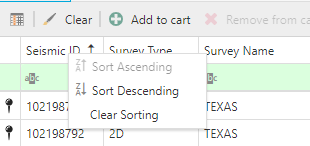
Sort Ascending: Sorts the grid according to the ascending order of the data in the selected column.
Sort Descending: Sorts the grid according to the descending order of the data in the selected column.
Clear Sorting: Clears the sort setting.
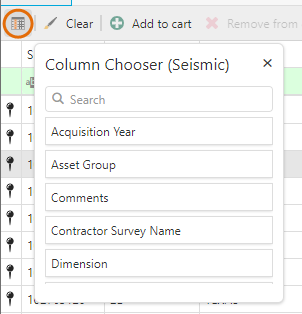
Show Column Chooser: Opens the column chooser with the list of all available columns to add or remove from the grid. Drag and drop a column from the Column Chooser window to the grid.
Filter Editor: Opens the Filter Editor window for entering filer criteria that will display the grid according to the filter information.