Select Browser Version:
The search results grid displays the products associated to a source. For instructions on populating the list of products, refer to Display associated products.
In the grid you can view or download files, and add or remove products from an order.
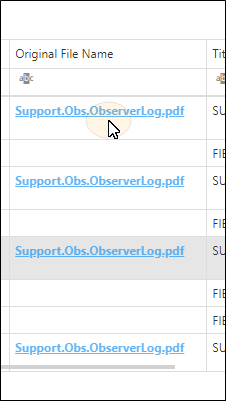
To download a single file:
-
Click on the file name.
To download multiple files:
Exploration Archives Browser communicates with Exploration Archives File Transfer to download files.
-
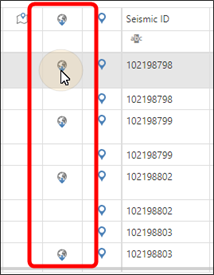
To add a file to the downloadqueue, select the product in the grid and click the icon in the download column.
-
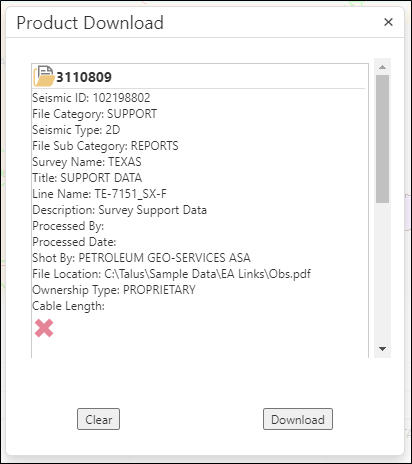
The file will be added to the download queue.
-
To download all the files in the queue, click Download.
A couple of points to remember:
-
Files can only be downloaded if the product contains an online file path.
-
Pop up blockers must be disabled to proceed with the download process.
-
Depending on the settings in File Transfer, the file will download to a pre-set location or prompt for a file location to save the file.
The lower portion the Grid Panel displays the products associated to a seismic source. For instructions on populating the list of products, refer to Display associated products.
In the products grid you can view or download files, and add or remove products from an order.
To download a product file:
Exploration ArchivesBrowser communicates with Exploration Archives File Transfer to download files.
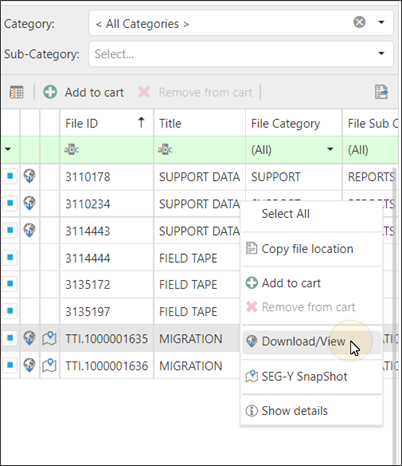
To download a product file, select the product in the grid and right-click to open the context menu. Click Download/View File.
A couple of points to remember:
-
Files can only be downloaded if the product contains an online file path.
-
Pop up blockers must be disabled to proceed with the download process.
-
Depending on the settings in File Transfer, the file will download to a pre-set location or prompt for a file location to save the file.