Select Version of EA Desktop:
In the Files module, use the Batch Move tool to manage the movement of your existing files and the location of copied files.
-
The target file name will default to Current File Name.
-
Now allows a folder structure with SeismicName_SeismicID.
-
You can now create a directory listing as part of the copy process.
-
Click to select the files to be moved.
-
Right-click to open the context menu and select Additional Tools>Batch Move.
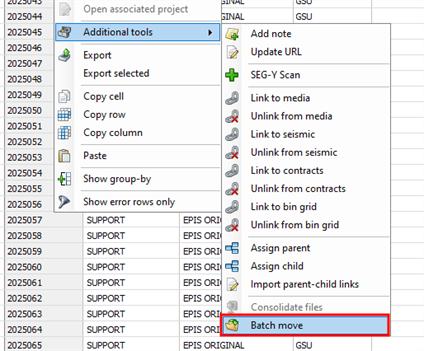
The Move Files window opens.
-
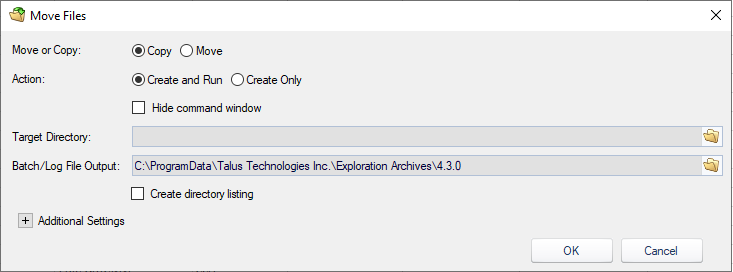
Set the following criteria:
-
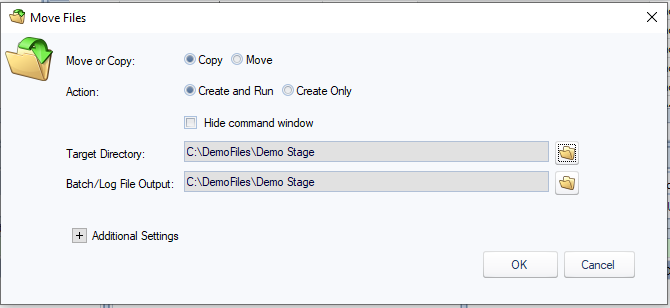
Move or Copy: Select Copy to copy the files, or Move files to a new location.
-
Action: Select Create and Run or Create Only.
-
Hide command window: Select this checkbox to hide the command window.
-
Target Directory: Browse to and select the appropriate production location.
-
Batch/Log File Output: Browse to and select the appropriate output location.
-
Create directory listing: If selected, a "Directory Listing" field will appear, and you will be required to specify a location for the directory listing file to be saved.
-
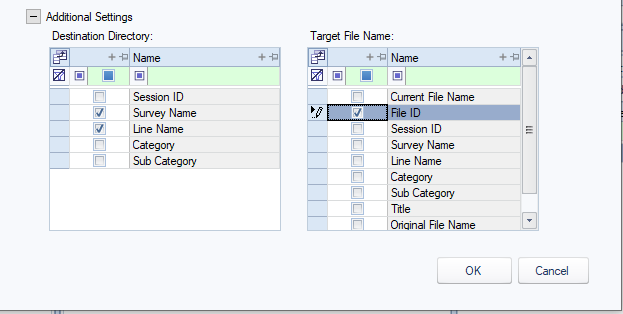
Additional Settings: Using the Additional Settings section, you can build a more dynamic destination file format.

The properties are listed as tokens that can be appended to, removed, or reordered. The tokens can be reordered by dragging them to the desired location.
Destination Directory: Type to find or create tokens that help create the directory path.
Target File Name: Type to find or create tokens that help create the directory path.
File Separator: Select the character that will separate the various tokens used in the file name.
Target Format Preview: Displays the final output format presuming each token has a valid valued.
-
-
Click OK. The files move to the specified folder.
-
Open the originating folder (or staging folder) to verify that the files moved correctly.
In the Files module, use the Batch Move tool to manage the movement of your existing files and the location of copied files.
-
Click to select the files to be moved.
-
Right-click to open the context menu and select Additional Tools>Batch Move.
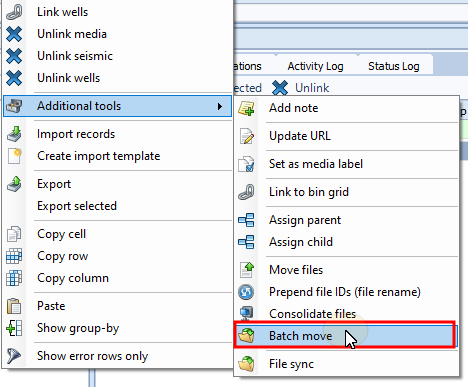
The Move Files window opens.
-
Set the following criteria:
-
Move or Copy: Select Copy to copy the files, or Move files to a new location.
-
Action: Select Create and Run or Create Only.
-
Hide command window: Select this checkbox to hide the command window.
-
Target Directory: Browse to and select the appropriate production location.
-
Batch/Log File Output: Browse to and select the appropriate output location.
-
Create directory listing: If selected, a "Directory Listing" field will appear, and you will be required to specify a location for the directory listing file to be saved.
-
Additional Settings: Using the Additional Settings section, you can build a more dynamic destination file format.
The properties are listed as tokens that can be appended to, removed, or reordered. The tokens can be reordered by dragging them to the desired location.
Destination Directory: Type to find or create tokens that help create the directory path.
Target File Name: Type to find or create tokens that help create the directory path.
-
-
Click OK. The files move to the specified folder.
-
Open the originating folder (or staging folder) to verify that the files moved correctly.