Select Version of EA Desktop:
The License module maintains the current information for each license. Included with the License module is the Editor View for creating and editing licenses. You must open the Editor View to add or edit detail in the License Properties area, and the Seismic tab and Products tab of the Related Records.
 To create a new license:
Creating a new license opens the Editor View with a blank record.
The tasks for creating a license involve:
-
Adding general information to the License Properties grid.
-
Adding seismic and associated products.
-
Creating the cutouts.
To begin a new license and add the general information:
-
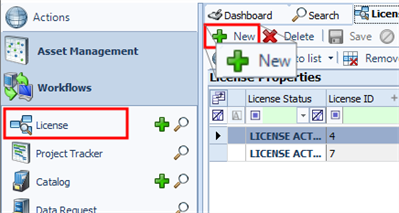
Click License in the navigation panel to open the module.
-
Click New in the workspace toolbar and the Editor View opens in a new tab.
 Note:
Note:There may be a rare case when starting a new license that all the fields are not available. If this is the case, check the Map panel to make sure that the correct map format appears in the drop-down window. If it isn’t the correct format, use the drop-down to change the map to the correct one.
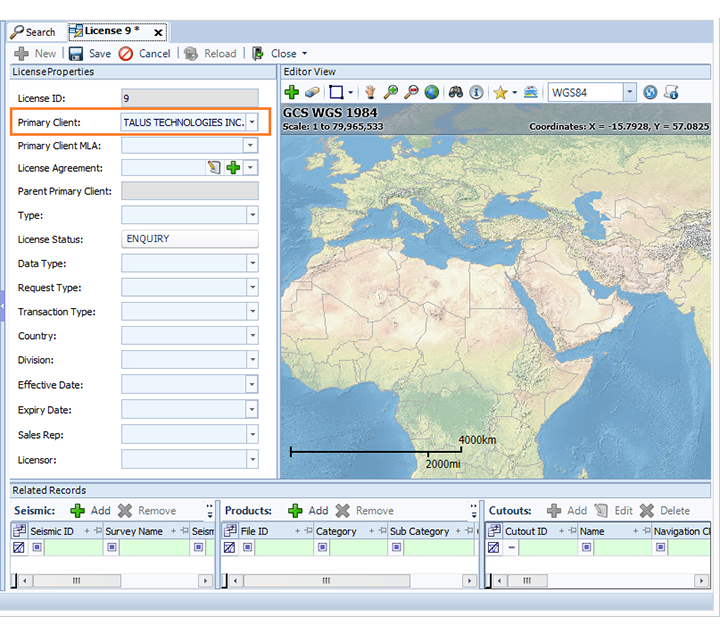
Exploration Archives auto-populates a License ID and the License Status sets to Enquiry.
-
In the License Properties area, locate the Primary Client field (required) and select the primary client for the license.
-
In the Primary Client MLA field, select the current master license agreement. The options available for this field populate according to the selection you made for the Primary Client field.
-
Select the information for the remaining fields in the License Properties area, as appropriate. Since the Enquiry status is an in-progress status, you can return to the license later to add information as you receive it.
-
Click Save and proceed to Add a survey or product.
To edit an existing license:
The information in the License Properties grid is read only. To edit the detail, you must open the Editor View.
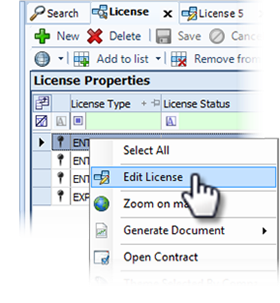
To open the Editor View, right-click on the license to open the context menu and click Edit License. The Editor View opens in a new tab with the details of the license available for editing.
The License module maintains the current information for each license. Included with the License module is the Editor View for creating and editing licenses. You must open the Editor View to add or edit detail in the License Properties area, and the Seismic tab and Products tab of the Related Records.
To edit an existing license:
The information in the License Properties grid is read only. To edit the detail, you must open the Editor View.
To open the Editor View, right-click on the license to open the context menu and click Edit License. The Editor View opens in a new tab with the details of the license available for editing.
To create a new license:
Creating a new license opens the Editor View with a blank record.
The tasks for creating a license involve:
-
Adding general information to the License Properties grid.
-
Adding seismic and associated products.
-
Creating the cutouts.
To begin a new license and add the general information:
-
Click License in the navigation panel to open the module.
-
Click New in the workspace toolbar and the Editor View opens in a new tab.
Note:There may be a rare case when starting a new license that all the fields are not available. If this is the case, check the Map panel to make sure that the correct map format appears in the drop-down window. If it isn’t the correct format, use the drop-down to change the map to the correct one.
Exploration Archives auto-populates a License ID and the License Status sets to Enquiry.
-
In the License Properties area, locate the Primary Client field (required) and select the primary client for the license.
-
In the Primary Client MLA field, select the current master license agreement. The options available for this field populate according to the selection you made for the Primary Client field.
-
Select the information for the remaining fields in the License Properties area, as appropriate. Since the Enquiry status is an in-progress status, you can return to the license later to add information as you receive it.
-
Click Save and proceed to Add a survey or product.