Select MobileMedia Version:
The Receiving task in the Receiving module maintains a record of the location of media items. Use the Receiving task when moving an existing media item to a new location or to assign a location for new media.
Refer to the Refile process to receive items that you are storing back at their original location.
You can initiate the Receiving task directly from MobileMedia, without an associated process in Exploration Archives. Alternatively, you can select an associated Data Request or Remediation Catalog session when receiving items.
To receive media:
-
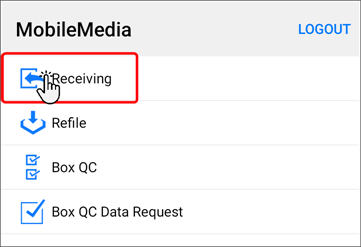
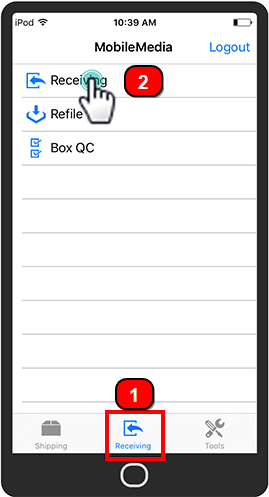
Open the Receiving module.
-
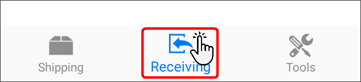
Tap Receiving.
-
Note: Skip this step if you are disregarding the association of an item to an Exploration Archives process.
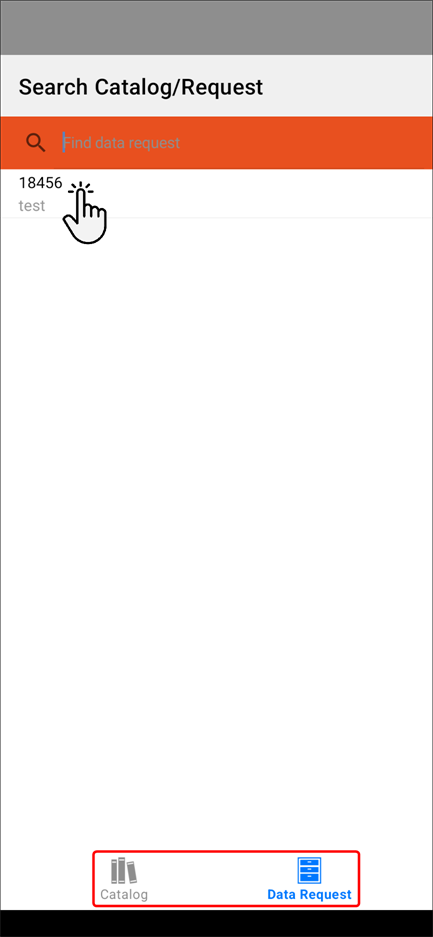
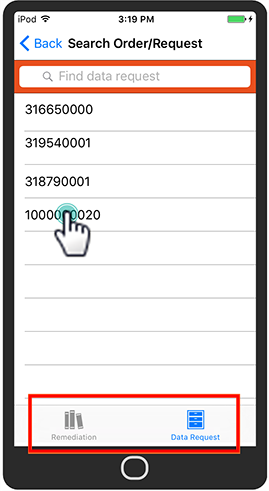
To receive media items associated to a Data Request or a Remediation Catalog, tap Select order/request. At the bottom of the screen, tap Data Request or Catalog and select the target Data Request.
 Note:
Note:A Data Request must be at the Delivered status in Exploration Archives to populate in MobileMedia.
-
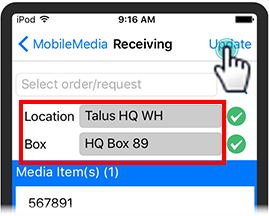
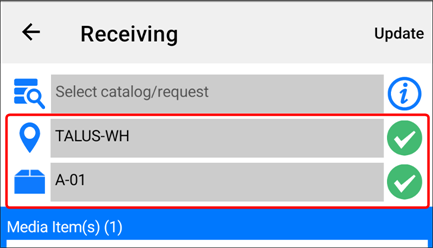
To receive the media items, scan the location barcode and the new box barcode.
-
Scan the barcode of each media item as you place them in the new box one at a time.
-
Verify that your items are correct and tap Update. The location of the items update in Exploration Archives.
The Receiving task in the Receiving module maintains a record of the location of media items. Use the Receiving task when moving an existing media item to a new location or to assign a location for new media.
Refer to the Refile process to receive items that you are storing back at their original location.
You can initiate the Receiving task directly from MobileMedia, without an associated process in Exploration Archives. Alternatively, you can select an associated Data Request or Remediation Catalog session when receiving items.
To receive media:
-
Open the Receiving module.
-
Tap Receiving.
-
Skip this step if you are disregarding the association of an item to an Exploration Archives process.
To receive media items associated to a Data Request or a Remediation Catalog, tap Select order/request. At the bottom of the screen, tap Data Request or Remediation and select the target Data Request.
 Note:
Note:A Data Request must be at the Delivered status in Exploration Archives to populate in MobileMedia.
-
To receive the media items, scan the location barcode and the new box barcode.
-
Scan the barcode of each media item as you place them in the new box one at a time.
-
Verify that your items are correct and tap Update. The location of the items update in Exploration Archives.