Select Browser Version:
The lower panel of the Checkout New Order Details window includes three tabs:

-
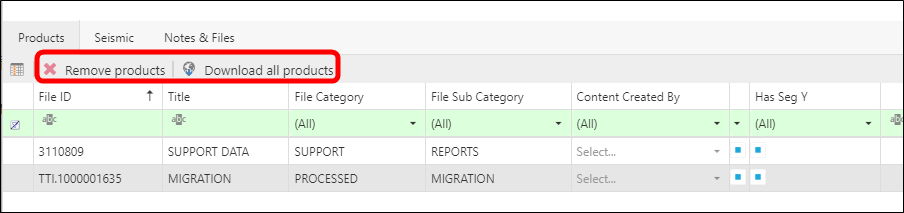
Products tab: Displays the products for the current order.
-
To remove products, click to select in the grid and click Remove Products.
-
Click Download all products to download the products.
-
-
Seismic tab: Displays the items associated to the products.
-
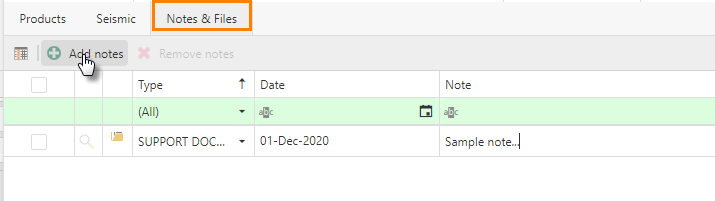
The Notes & Files tab: is for adding notes or files.
-
This may include additional instructions or a shape file indicating the cutouts are of a 3D product.
-
To add a note, click Add notes. Enter the information in the Note column.
-
To add a file to a note, click the folder in the grid row and browse to the file location. Click Open. The filename and file path (if accessible) adds to the grid.
The lower panel of the Checkout New Order Details window includes three tabs:
-
Products tab: Displays the products for the current order.
To remove products, click to select in the grid and click Remove Selected.
-
Seismic tab: Displays the items associated to the products.
-
The Notes & Files tab: is for adding notes or files.
This may include additional instructions or a shape file indicating the cutouts are of a 3D product.
To add a note, click Add Note. Enter the information in the Note column.
To add a file to a note, click the folder in the grid row and browse to the file location. Click Open. The filename and file path (if accessible) adds to the grid.