Select Version of EA Desktop:
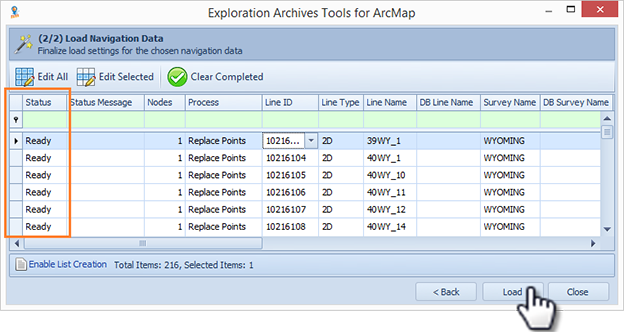
Items that meet the required criteria for loading navigation data to Exploration Archives have a Status of Ready in the loading grid. Exploration ArchivesTools for ArcMap will omit items that are not ready.
Note: A red x indicates the missing or incorrect information that must be fixed to be included in the load. Locate the errors and make the corrections accordingly.
If you want Exploration Archives to create a list of the new items for you to access, be sure to turn on Enable List Creation before clicking Load. For more information, refer to Enabling List creation.
When you are satisfied with the status of the items, complete loading the navigation data:
-
Click Load. A confirmation message opens.
-
Click Yes. Items will begin to load into Exploration Archives. Depending on the size of the import, the process may take a few minutes.
-
A message opens indicating when the import is complete. Click OK.
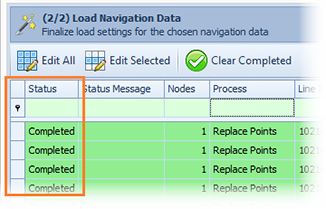
Items that loaded successfully display a Completed status and are highlighted in green. Exploration Archives will automatically draw the shape on the map.
-
If you are finished working with the items in the grid, click Close.
To display only the items that were not imported, click Clear Completed.