Select Version of EA Desktop:
After opening Navigation Loader, enter the appropriate detail for the Loading Options and Feature Attribute Mapping sections.
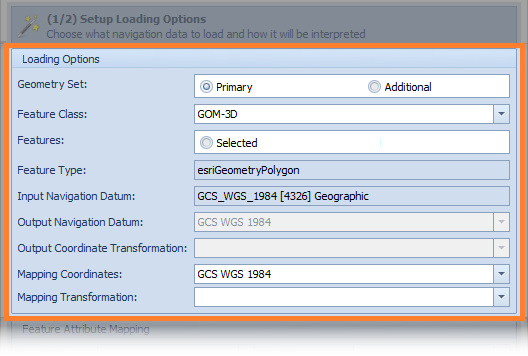
Select the Loading Options:
- Geometry Set: Select Primary if you are loading a main geometry set. Select Additional if you are loading an additional set.
- Feature Class: Select the feature class from the drop-down options.
- Features: Select Selected if you are loading selected features from the layer. Select All if you are loading the entire layer.
- Feature Type: Auto-generates based on the input file.
-
Input Navigation Datum: Exploration Archives detects and populates the coordinate reference system (CRS) through ArcMap.
If the EPSG code in the brackets is not greater than zero [0], contact your system administrator. The error may be a result of the following:- For shape files, the PROJCS name in the .prj file must match exactly to the name in ArcMap
- Custom projections must be defined by your administrator
-
Output Coordinate Transformation: Optional, select if required.
- Mapping Coordinates: This field is optional and may not be available in your instance of Tools.
The default entry populates the geographic coordinate system (GCS) that is set in Exploration Archives. Typically, the GCS default is WGS 84. - Mapping Transformation: This field is optional and may not be available in your instance of Tools.
Select the appropriate mapping transformation from the drop-down. Contact your geomatics administrator if the transformation is not available.
Specifying the Feature Attribute Mapping
The mapping options that you set will assign attributes from the file to the Exploration Archives column names.
Set the corresponding attributes for each feature relevant to your file.
After setting the import options and mapping the attribute features, click Next and refer to Setting metadata for loading navigation for instructions.
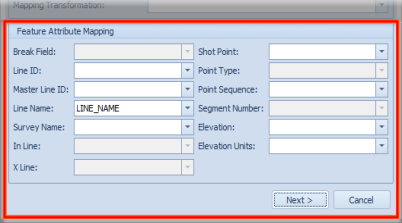
The Break Field sets the segregation, or grouping of points into a line or polygon.
After opening Navigation Loader, enter the appropriate detail for the Loading Options and Feature Attribute Mapping sections.
Select the Loading Options:
- Geometry Set: Select Primary if you are loading a main geometry set. Select Additional if you are loading an additional set.
- Feature Class: Select the feature class from the drop-down options.
- Features: Select Selected if you are loading selected features from the layer. Select All if you are loading the entire layer.
- Feature Type: Auto-generates based on the input file.
-
Input Navigation Datum: Exploration Archives detects and populates the coordinate reference system (CRS) through ArcMap.
If the EPSG code in the brackets is not greater than zero [0], contact your system administrator. The error may be a result of the following:- For shape files, the PROJCS name in the .prj file must match exactly to the name in ArcMap
- Custom projections must be defined by your administrator
-
Output Coordinate Transformation: Optional, select if required.
- Mapping Coordinates: This field is optional and may not be available in your instance of Tools.
The default entry populates the geographic coordinate system (GCS) that is set in Exploration Archives. Typically, the GCS default is WGS 84. - Mapping Transformation: This field is optional and may not be available in your instance of Tools.
Select the appropriate mapping transformation from the drop-down. Contact your geomatics administrator if the transformation is not available.
Specifying the Feature Attribute Mapping
The mapping options that you set will assign attributes from the file to the Exploration Archives column names.
Set the corresponding attributes for each feature relevant to your file.
After setting the import options and mapping the attribute features, click Next and refer to Setting metadata for loading navigation for instructions.
Note: The Break Field sets the segregation, or grouping of points into a line or polygon.