Adjust workspace layout
The Catalog workspace in edit mode has functionality to edit the workspace layout.
Options include preset and custom layouts. You also have the ability to undock and float different panes.
Preset layouts
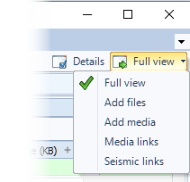
Preset layouts are available for targeted tasks in your cataloging workflow. To set the view to a preset layout, click and select an option from the upper right corner.
Preset layout options include:
- Full view
- Add files
- Add media
- Media links
- Seismic links
Custom layouts
The Catalog module offers flexibility to customize your workspace by undocking and repositioning panes.
Undocking and docking to a new position
To dock a panel to a new dock position:
-
Click and hold the blue header of the panel.
-
Drag the panel out of its dock.
Drop zone arrows display to indicate the available docking positions.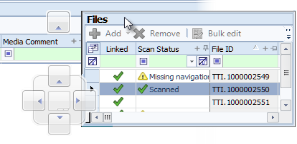
-
Move the cursor to hover over the target drop zone. When the cursor is in position, the drop arrow turns blue.
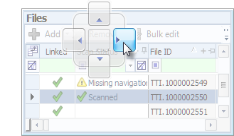
-
Release the mouse button to place the panel in the new docked position.
Undock a panel as a new window
To undock a panel and use as a new window:
- Click and hold the blue header of the panel.
- Drag the panel out of its dock.
Drop zone arrows display to indicate the available docking positions. - Release the panel anywhere except over a drop zone. The panel becomes a new window for you to position anywhere on your screen or even to a second monitor.
The Catalog workspace in edit mode has functionality to edit the workspace layout.
Options include preset and custom layouts. You also have the ability to undock and float different panes.
Preset layouts
Preset layouts are available for targeted tasks in your cataloging workflow. To set the view to a preset layout, click and select an option from the upper right corner.
Preset layout options include:
- Full view
- Add files
- Add media
- Media links
- Seismic links
Custom layouts
The Catalog module offers flexibility to customize your workspace by undocking and repositioning panes.
Undocking and docking to a new position
To dock a panel to a new dock position:
-
Click and hold the blue header of the panel.
-
Drag the panel out of its dock.
Drop zone arrows display to indicate the available docking positions.
-
Move the cursor to hover over the target drop zone. When the cursor is in position, the drop arrow turns blue.
-
Release the mouse button to place the panel in the new docked position.
Undock a panel as a new window
To undock a panel and use as a new window:
- Click and hold the blue header of the panel.
- Drag the panel out of its dock.
Drop zone arrows display to indicate the available docking positions. - Release the panel anywhere except over a drop zone. The panel becomes a new window for you to position anywhere on your screen or even to a second monitor.