Select Version of EA Desktop:
The sessions in the Catalog Properties grid display a soft-lock icon to indicate when a user is editing a record. If the lock displays as open, the record is not being edited by another user.
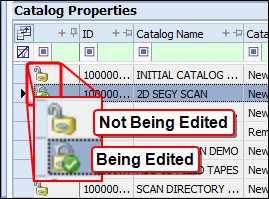
The lock icon is for indication purposes only and does not prevent others from editing.
To edit a catalog record:
Double-click on the record or right-click and select Edit catalog.
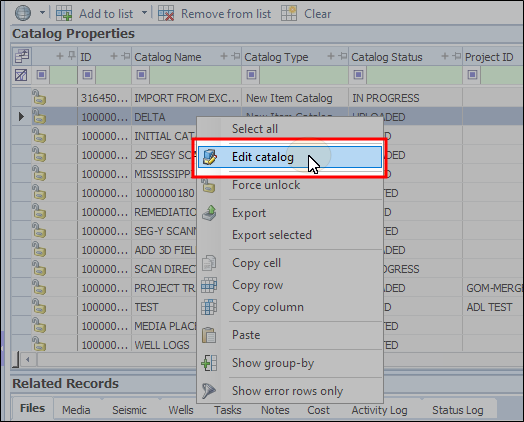
The session opens in edit mode in the default edit view, or in the last view layout you had open. To modify the workspace layout, refer to Adjust workspace layout.
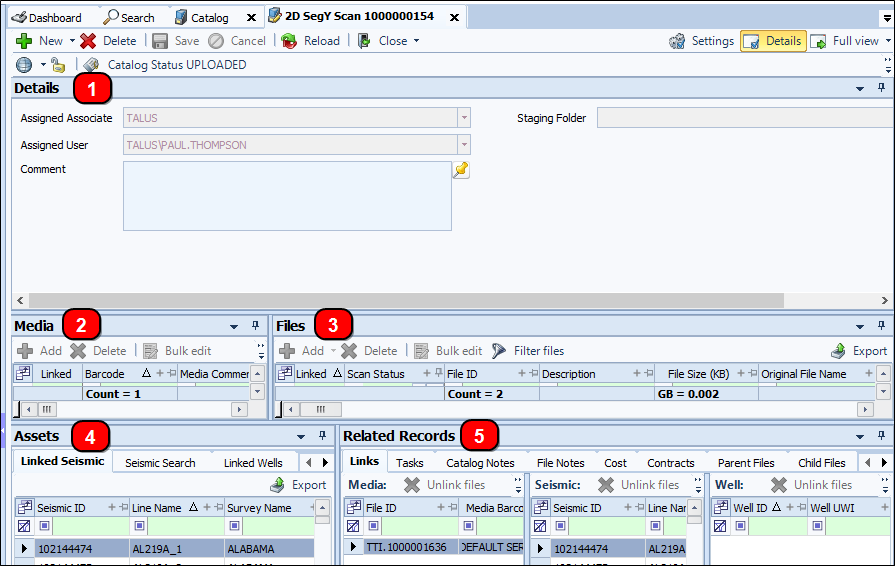
The default edit layout includes five panes:
-
Details: general information
Tip:Click Details in the upper right corner to toggle on and off.
-
Media: working space for adding and linking media
-
Files: working space for adding and linking files
-
Assets: includes tabs for searching Seismic and Wells, and tabs to indicate linked seismic and wells.
-
Related Records: includes several tabs for viewing the various categories of information associated to the catalog session.
The Catalog module has a view mode and an edit mode for catalog records.
The edit mode of the Catalog module lets you add files and media, catalog detail, and link items to a seismic survey.
A catalog session progresses through various statuses specific to your company workflow.
To change the status of a session, refer to Updating the status of a catalog session.
When creating a new session, the catalog window will open in edit mode.
The sessions in the Catalog Properties grid display a soft-lock icon to indicate when a user is editing a record. If the lock displays as open, the record is not being edited by another user. The lock icon is for indication purposes only and does not prevent others from editing.
The lock icon is for indication purposes only and does not prevent others from editing.
Double-click on the record or right-click and select Edit catalog.
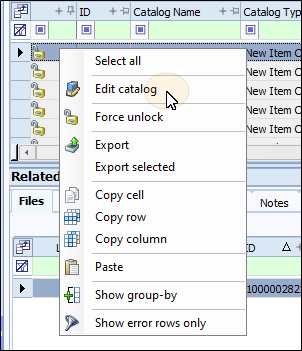
The session opens in edit mode in the default edit view, or in the last view layout you had open. To modify the workspace layout, refer to Adjust workspace layout.
As soon as you begin editing the record, the Catalog Properties grid will display a green check to indicate that you are editing. Even with the lock-edit indicator, the record remains available for others to open and edit. The green lock remains for 48 hours, unless you close the record sooner or another user begins editing the record.
The default edit layout includes five panes:
-
Details: general information
Tip:Click Details in the upper right corner to toggle on and off.
-
Media: working space for adding and linking media
-
Files: working space for adding and linking files
-
Assets: includes tabs for searching Seismic and Wells, and tabs to indicate linked seismic and wells.
-
Related Records: includes several tabs for viewing the various categories of information associated to the catalog session.
The Catalog module has a view mode and an edit mode for catalog records.
The edit mode of the Catalog module lets you add files and media, catalog detail, and link items to a seismic survey.
A catalog session progresses through various statuses specific to your company workflow.
To change the status of a session, refer to Updating the status of a catalog session.
When creating a new session, the catalog window will open in edit mode.
The sessions in the Catalog Properties grid display a soft-lock icon to indicate when a user is editing a record. If the lock displays as open, the record is not being edited by another user. The lock icon is for indication purposes only and does not prevent others from editing.
The lock icon is for indication purposes only and does not prevent others from editing.
Double-click on the record or right-click and select Edit catalog.
The session opens in edit mode in the default edit view, or in the last view layout you had open. To modify the workspace layout, refer to Adjust workspace layout.
As soon as you begin editing the record, the Catalog Properties grid will display a green check to indicate that you are editing. Even with the lock-edit indicator, the record remains available for others to open and edit. The green lock remains for 48 hours, unless you close the record sooner or another user begins editing the record.
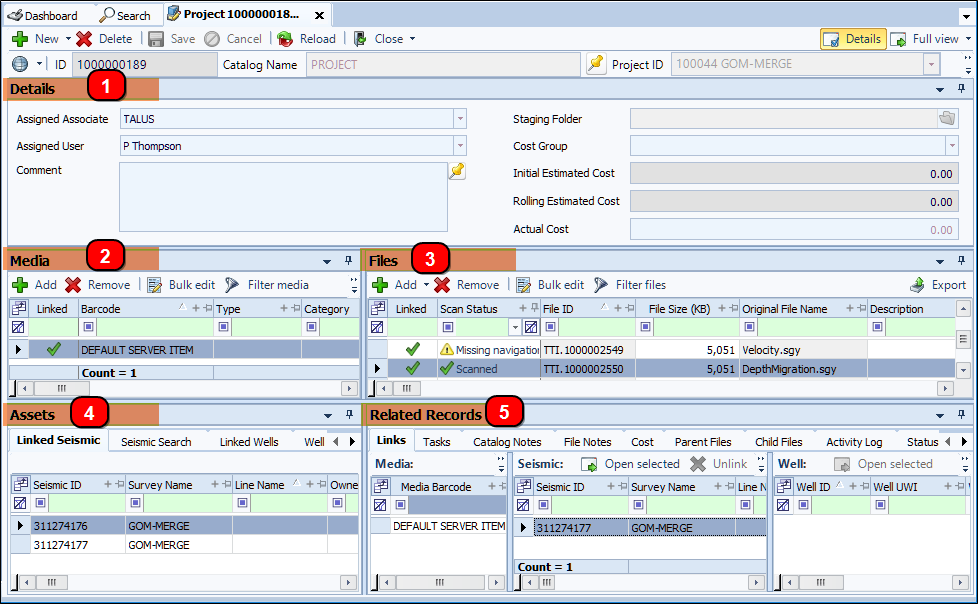
The default edit layout includes five panes:
-
Details: general information
Tip:Click Details in the upper right corner to toggle on and off.
-
Media: working space for adding and linking media
-
Files: working space for adding and linking files
-
Assets: includes tabs for searching Seismic and Wells, and tabs to indicate linked seismic and wells.
-
Related Records: includes several tabs for viewing the various categories of information associated to the catalog session.