Select Version of EA Desktop:
After moving files to a production folder, the new file location must be synchronized with Exploration Archives.
To synchronize (sync) the files:
-
In the navigation panel, under Utilities, click File Synchronize.
The File Synchronize module opens in the workspace panel.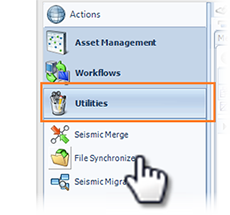
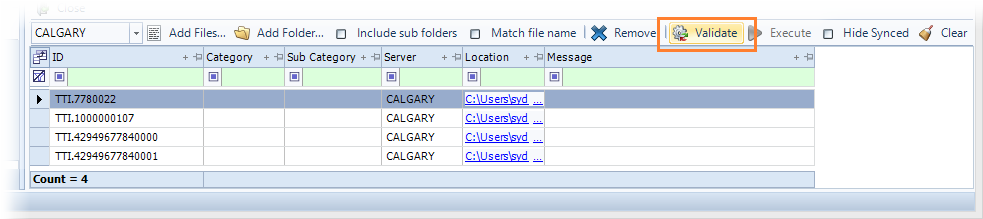
- In the drop-down option, select the server that you want to add files or folders from. In the sample image, the server CALGARY is selected.

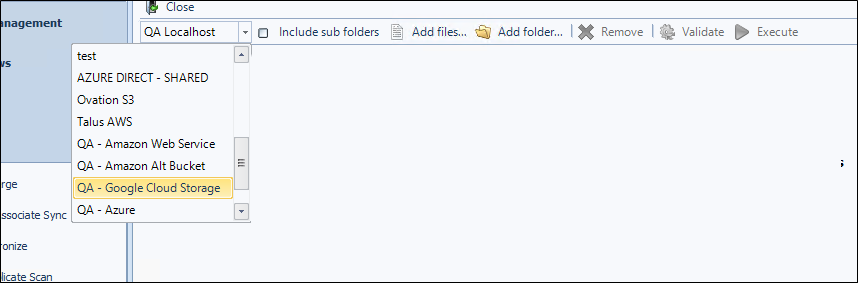
You now have the option to select files from Cloud providers (Google Cloud, Amazon Web Services (AWS) & Microsoft Azure) to use when syncing files.
-
Add files:
To add individual files, click Add Files. Browse to the file location and select the files. Hold Ctrl to select multiple files.
To add all files within a folder select Add Folder.
To include the sub folders, select Include sub folders and then click Add Folder. Navigate to the folder and select to add. A grid populates in the workspace with the specified files listed.
Match file name checks that the file names are the same.
-
Click Validate to verify that the specified files exist in the Exploration Archives production tables.
-
Check the Message column for errors and correct all errors before proceeding.
-
The Execute button becomes available when no errors exist. Click Execute to complete the process.
To filter the files remaining to be synced only, click the Hide Synced button.
After moving files to a production folder, the new file location must be synchronized with Exploration Archives.
To synchronize (sync) the files:
-
In the navigation panel, under Utilities, click File Synchronize.
The File Synchronize module opens in the workspace panel.
- In the drop-down option, select the server that you want to add files or folders from. In the sample image, the server CALGARY is selected.
- Add files:
-
To add individual files, click Add Files. Browse to the file location and select the files. Hold Ctrl to select multiple files.
-
To add all files within a folder select Add Folder.
-
To include the sub folders, select Include sub folders and then click Add Folder. Navigate to the folder and select to add. A grid populates in the workspace with the specified files listed.
-
Match file name checks that the file names are the same.
-
Click Validate to verify that the specified files exist in the Exploration Archives production tables.
-
Check the Message column for errors and correct all errors before proceeding.
-
The Execute button becomes available when no errors exist. Click Execute to complete the process.
To filter the files remaining to be synced only, click the Hide Synced button.