Select Version of EA Desktop:
The initial view of your Dashboard is the default set for your user group. However, you can customize the dashboard to display the widgets in a way that is best suited for you.
Expand the topic for more detail:
 Selecting widgets to display:
-
Use the widget selector to view the list of widgets available and select which ones to display on your Dashboard. To open the selector, right-click on an empty space in the Dashboard.
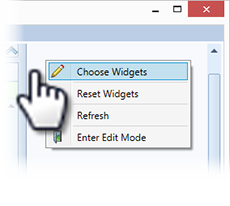
-
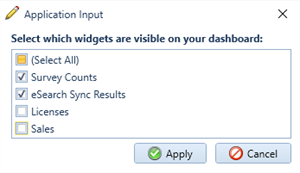
Click to check or clear the widgets to display and click Apply.
Resizing widgets:
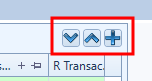
To re-size a widget, use the Increase Size and Decrease Size button in the upper right corner of a widget. The widgets have four incremental size options.
The Plus sign maximizes the widget.
Moving widgets:
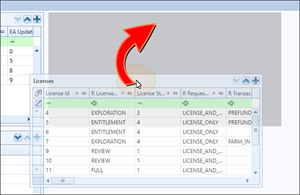
To move widgets around, click on a widget and drag to a new position. A grey outline indicates an available spot for repositioning the widget.
Organizing widget grids:
The grids in widgets include similar functionality as other grids in Exploration Archives for optimal data display.
-
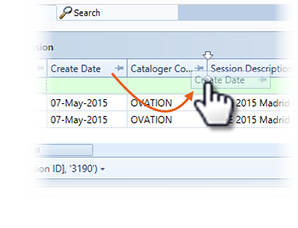
You can move the location of a column by clicking the column header and dragging it to a new location. Release the column when a pair of arrows display to indicate the placement location.
-
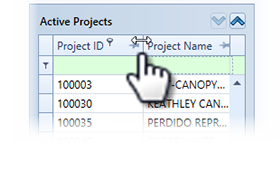
To adjust the column width, hover over the right-hand edge of the column header until a double-sided arrow displays.
Click and drag to adjust the column width.
-
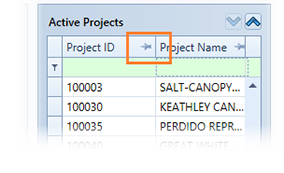
To pin a column to the left, click the pin button in the header row. This locks the column to the left side of the grid. Repeat if you want to pin multiple columns to the left. The column(s) remains in place when scrolling horizontally. Click the pin again to unpin.
-
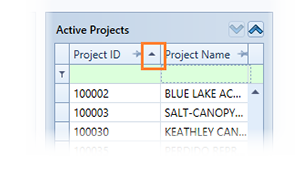
To sort ascending or descending click the column header to activate the ascending and descending sort option. Click the arrow to toggle between ascending and descending.
Filter widget data:
-
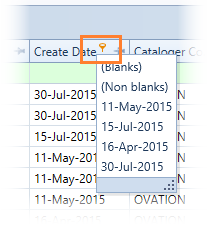
To select a particular value for a column category, click the filter button and select a value from the list. Only rows with the selected value will display in the grid.
-
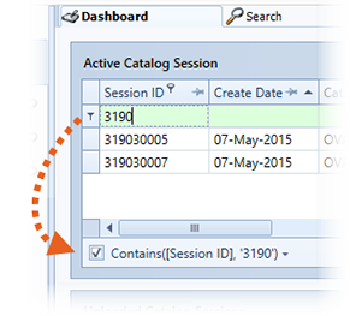
The first row in the grid is the manual filter row. Type in a value to filter and the grid will begin to filter the data as you type. In this example, typing "3190" displays only items that have a session ID starting with "3190".
The active filter information shows at the bottom of the widget for reference. If the data displayed is not as expected, check to see if the filters are influencing the data being displayed.