Select Version of EA Desktop:
There are two types of toolbars in the Workspace ; the Workspace toolbar and the Module toolbar.

The Workspace toolbar has commands that affect the Workspace. The Workspace toolbar contains commands common across all modules with select commands for modules.
The Module toolbar typically has commands that affect the particular module that is open. Depending on the module, these commands can be either grid related or workflow related. The Additional tools menu will populate with commands that are specific for each modules:
Workspace Toolbar |
||

|
New: Adds a new row to the grid. Not available in the File and Media modules. | |

|
Delete: Deletes the selected row(s). Not available in the File and Media modules. | |

|
Save: Saves all changes. |
|

|
Cancel: Reverts unsaved changes. | |

|
Reload: Refreshes the details in the current grid. | |
|
|
Close: Closes the current module tab. If you have unsaved changes, you will be prompted to save your changes. Close without saving layout changes: Closes the current module tab without saving new display settings created during the session. |
|

|
Related Records: In the Seismic module, opens the related records of the selected seismic record. | |

|
Card view: In the Seismic module, displays the selected seismic record in a single page view (instead of showing all records in a grid view). | |

|
Map: In the Seismic module, opens the Map.
|

Module Toolbar
-
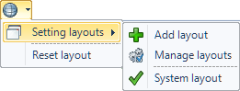
Setting layouts: Opens options for managing custom layouts. Select the columns to display, set column widths, adjust panel sizes and other layout settings, and save your layout for future access.
-
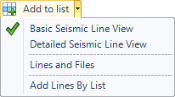
Add to list: Add items to the list using a quick-access search option. Click the down arrow to view the available searches.
-
Remove from list: Removes selected rows from the list.

-
Clear: Removes all rows from the display grid.

-
Bulk edit: Opens the Bulk edit tool for simultaneously editing metadata in multiple rows.

-
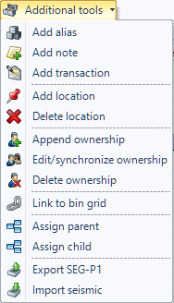
Additional tools: The commands available will vary depending on the active module. This example displays the Additional tools available for the Seismic module.
-
Bulk mode: Allows the ability to select multiple records in the grid.

With Bulk mode turned on, you can edit multiple records using the Bulk Edit command.
With Bulk mode turned off, the Related Records window display only for the selected item in the grid.
Note: Bulk mode is not available with the Bin Grid module.
-
Export:Exports the grid in Microsoft Excel format.
