Select Version of EA Desktop:
The lower panel of the workspace contains tabs for adding products, adding and viewing associated information, and accessing historical details.
In the Products tab of the Data Request, you can add products using the Add Order Item feature. This feature offers a variety of options for adding a product to a Data Request that is displayed in the workspace.
Click to expand the topics below:
 To search for and add products:
-
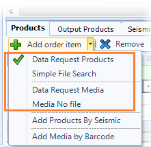
Click the down arrow of Add Order Item and select one of the configured search options.
-
In the search results window, select the item to add to the Data Request. Hold Ctrl and click to select multiple items.
-
Click OK. The item(s) display in the Products tab grid.
-
Click Save.
To add products associated to a particular seismic:
-
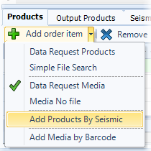
Click the down arrow of Add Order Item and select Add Products by Seismic.
-
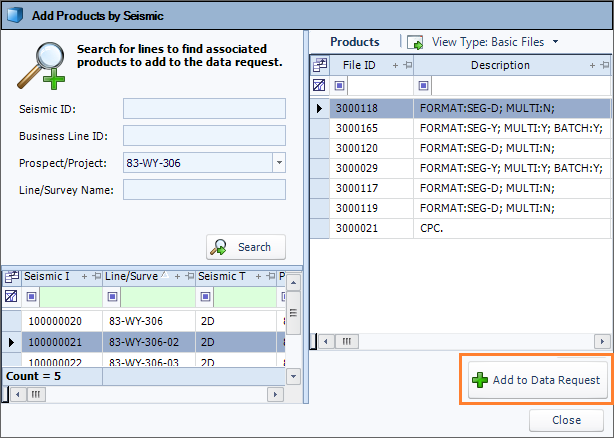
In the new window, enter or select search criteria and click Search.
-
Select an item in the search results in the lower left panel. The associated Products of the selected item will display in the right panel.
-
Select the products to add to the Data Request and click Add to Data Request.
To add physical media items using barcode scanning:
-
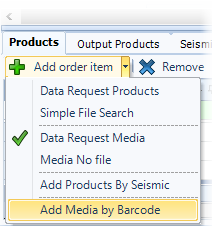
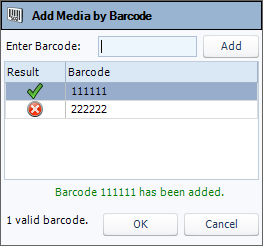
Click the down arrow of Add Order Item and select Add Media by Barcode.
-
The Add Media by Barcode window opens. Use a scanner to scan the items to be added.
-
As items are scanned, valid barcodes are indicated with a green check. Invalid barcodes display a red x .
-
When complete, click OK to add the items to the Products tab grid.
Invalid items will be omitted.