Select Version of EA Desktop:
Creating a project begins when you receive a contract and have the initial details. Using the details you receive with the contract, you can create a project and enter the logistics in the Project Properties grid. After entering the project properties, you can add preliminary information in the Related Records area, and edit as the project progresses.
To create a new project and enter the project properties:
-
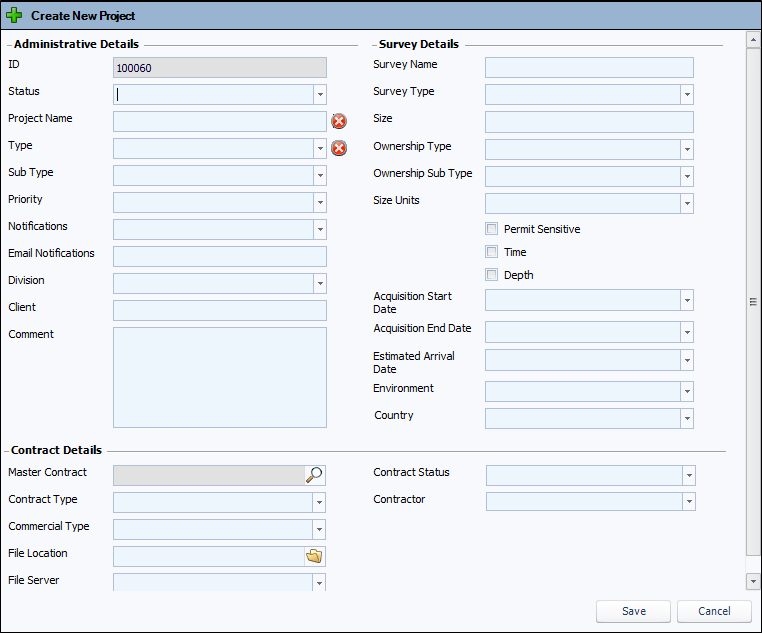
Open Project Tracker and click NewThe Create New Project window opens.
-
Select a Status for the project and enter a Project Name.
-
Select the project Type.
Status and Project name are required fields
-
Enter the remaining information for each field as applicable.
-
Click Save.
Creating a project begins when you receive a contract and have the initial details. Using the details you receive with the contract, you can create a project and enter the logistics in the Project Properties grid. After entering the project properties, you can add preliminary information in the Related Records area, and edit as the project progresses.
To create a new project and enter the project properties:
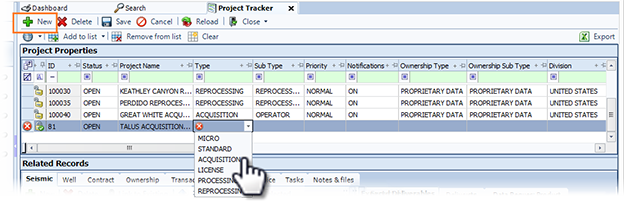
- Open Project Tracker and click New. A new row adds to the Project Properties grid with an auto-generated ID.
- Select a Status for the project and enter a Project Name.
- Select the project Type.
- Enter the remaining information for each column as applicable.
- Click Save.
Continue by adding the relevant Related Records information.