Perform QC for remediation
Select MobileMedia Version:
If you are shipping for a remediation order, at staging, you must perform quality control to ensure your media items are ready.
To perform quality control (QC) for remediation:
-
Open the Shipping module.
-
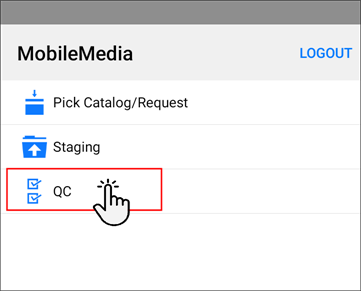
Tap QC.
-
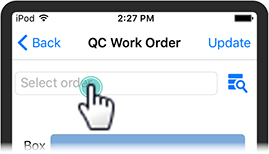
In the new screen, tap Select order.
 Note:
Note:Remediation Catalog sessions in Exploration Archives must be at the Shipping status to populate in MobileMedia.
-
Select the order from the list and the previous screen opens.
-
Scan the barcode on the box and the Box field populates with the expected media items listed.
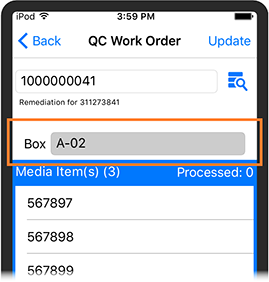
- To confirm you have all the expected media items, scan the barcode for each media item listed and place them back in the box one at a time. MobileMedia removes the items from your box list as you scan.
- When you have completed scanning all items for the box, a Box Completed message opens. Click Ok.
-
After performing QC, MobileMedia communicates with Exploration Archives and updates the status of the media items to Ready.
If you are shipping for a remediation order, at staging, you must perform quality control to ensure your media items are ready.
To perform quality control (QC) for remediation:
-
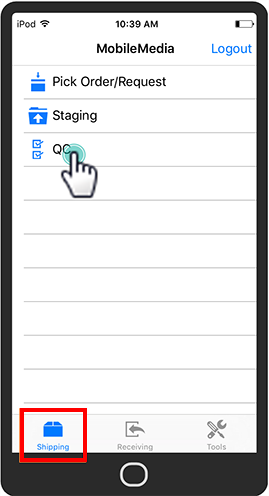
Open the Shipping module.
-
Tap QC.
-
In the new screen, tap Select order.
Note:Remediation Catalog sessions in Exploration Archives must be at the Shipping status to populate in MobileMedia.
-
Select the order from the list and the previous screen opens.
-
Scan the barcode on the box and the Box field populates with the expected media items listed.
- To confirm you have all the expected media items, scan the barcode for each media item listed and place them back in the box one at a time. MobileMedia removes the items from your box list as you scan.
- When you have completed scanning all items for the box, a Box Completed message opens. Click Ok.
-
After performing QC, MobileMedia communicates with Exploration Archives and updates the status of the media items to Ready.