Select MobileMedia Version:
After populating the list of media in MobileMedia, use the list to begin picking the media items. MobileMedia generates the list of items in sequential order according to the physical layout of your warehouse.
Locate the first box and collect the media one at a time, scanning the item barcode for each one as you go. MobileMedia removes items from the list as you scan them.
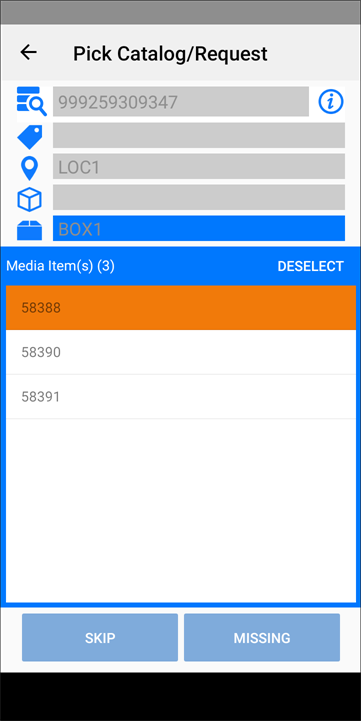
The scanning procedure updates the status of the media in the Media module of Exploration Archives. For details refer to View media status.
The Skip option, will skip all remaining items in the box. If you need to skip an item, be sure to scan the other items first and then tap Skip. In the verification message, tap Ok.
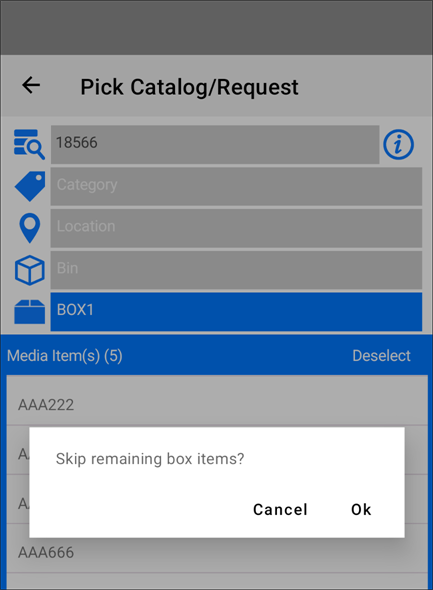
When all items are scanned (or skipped), a Box Completed message opens. Tap Ok.
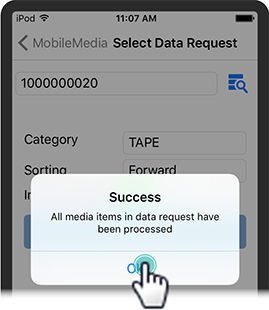
When all boxes are complete, a Success message opens. Tap Ok. Transport the items to the staging area and refer to the Staging module information.
After populating the list of media in MobileMedia, use the list to begin picking the media items. MobileMedia generates the list of items in sequential order according to the physical layout of your warehouse.
Locate the first box and collect the media one at a time, scanning the item barcode for each one as you go. MobileMedia removes items from the list as you scan them.
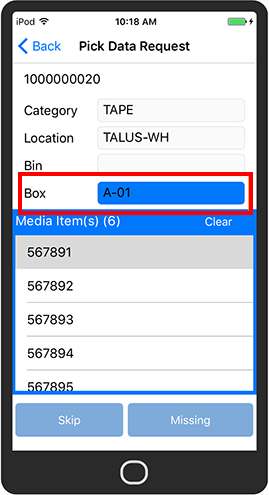
The scanning procedure updates the status of the media in the Media module of Exploration Archives. For details refer to View media status.
The Skip option, will skip all remaining items in the box. If you need to skip an item, be sure to scan the other items first and then tap Skip. In the verification message, tap Ok.
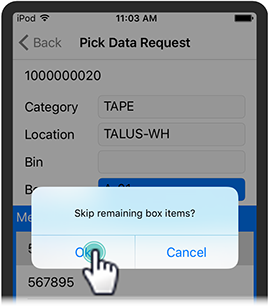
When all items are scanned (or skipped), a Box Completed message opens. Tap Ok.
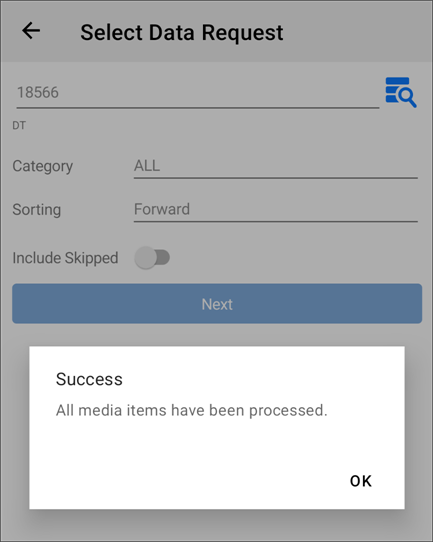
When all boxes are complete, a Success message opens. Tap Ok. Transport the items to the staging area and refer to the Staging module information.