Select MobileMedia Version:
As items move in the warehouse, MobileMedia automatically updates the media status in the Media module of Exploration Archives.
To view the latest changes, open the Media module. Click the Products tab and locate the Status column.
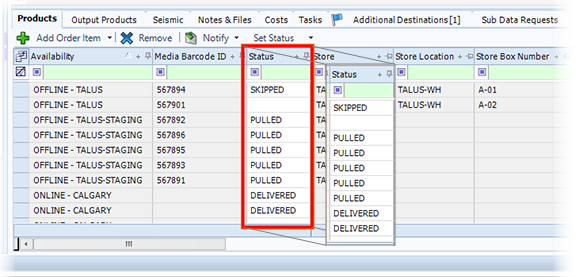
The statuses for the Shipping procedure depend on your company workflow. The typical statuses include:
- Pulled: Item has been pulled from the storage box and in transit to the next location.
- Skipped: Item was skipped during the pulling media procedure.
- Staging: Item is at the staging location.
- Ready: Item is ready for delivery.
- Delivered: Item has been delivered. This status is manually entered via the Media module.
- Missing: Item was not found in the box indicated.
As items move, the Status changes. Other factors regarding the location also change, as indicated in the associated columns. The associated columns include Availability, Store, Store Location and Store Box Number.
As items move in the warehouse, MobileMedia automatically updates the media status in the Media module of Exploration Archives.
To view the latest changes, open the Media module. Click the Products tab and locate the Status column.
The statuses for the Shipping procedure depend on your company workflow. The typical statuses include:
- Pulled: Item has been pulled from the storage box and in transit to the next location.
- Skipped: Item was skipped during the pulling media procedure.
- Staging: Item is at the staging location.
- Ready: Item is ready for delivery.
- Delivered: Item has been delivered. This status is manually entered via the Media module.
- Missing: Item was not found in the box indicated.
As items move, the Status changes. Other factors regarding the location also change, as indicated in the associated columns. The associated columns include Availability, Store, Store Location and Store Box Number.