Select Version of EA Desktop:
The Bin Grid module includes a tool for performing custom calculations associated to a bin grid.
The calculation tool performs two functions:
- Entering the X and Y coordinates will calculate the corresponding inline and crossline locations.
- Entering the inline and crossline locations will calculate the X and Y coordinates.
To calculate custom values with a bin grid:
-
From the Bin Grid Properties grid Click to select the bin grid.
-
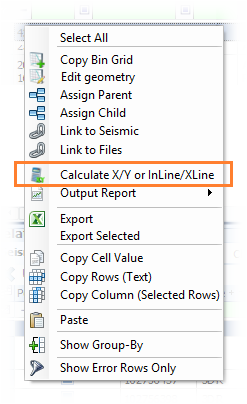
Right-click and select Calculate X/Y or InLine/XLine.
- The Projected CRS and the geographical drawing of the bin grid displays in the new window.
- To calculate the X and Y coordinates, enter the inline and crossline values in the given fields.
Click Calculate X/Y. - To calculate the inline and crossline locations, enter the X and Y coordinates in the given fields.
Click Calculate InLine/XLine.
The geographical location displays on the bin grid in the window.
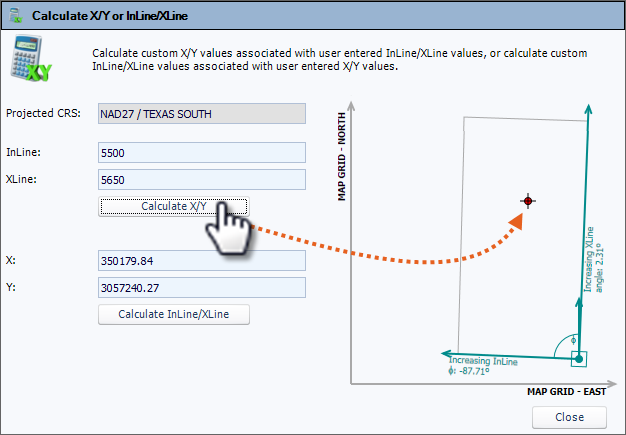
Clicking directly on a position in the image populates the values for the X, Y, inline and crossline values in the associated fields.
The Bin Grid module includes a tool for performing custom calculations associated to a bin grid.
The calculation tool performs two functions:
- Entering the X and Y coordinates will calculate the corresponding inline and crossline locations.
- Entering the inline and crossline locations will calculate the X and Y coordinates.
To calculate custom values with a bin grid:
-
From the Bin Grid Properties grid Click to select the bin grid.
-
Right-click and select Calculate X/Y or InLine/XLine.
- The Projected CRS and the geographical drawing of the bin grid displays in the new window.
- To calculate the X and Y coordinates, enter the inline and crossline values in the given fields.
Click Calculate X/Y. - To calculate the inline and crossline locations, enter the X and Y coordinates in the given fields.
Click Calculate InLine/XLine.
The geographical location displays on the bin grid in the window.
Clicking directly on a position in the image populates the values for the X, Y, inline and crossline values in the associated fields.