Select MobileMedia Version:
-
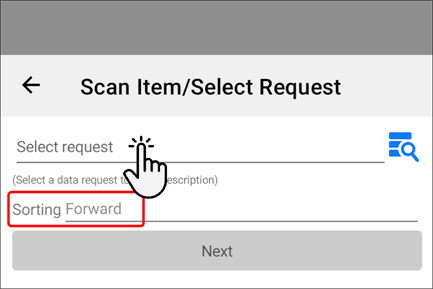
If you know the data request associated to the items you need to refile, tap Select request and select the data request from the list.
Note:The data request must be at the In-Progress or Delivered status in Exploration Archives to populate in MobileMedia.
-
Select Forward or Backward in the Sorting field, depending on the direction you plan to begin. MobileMedia generates the list of items in sequential order according to the physical layout of your warehouse.
-
The barcodes for the original location of the first item display in the Location and Box field for you to locate.
The red x indicates that the location and box are ready for scanning.
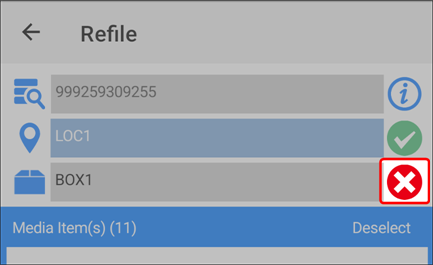
When you arrive at the physical location, scan the barcode for the location and box.
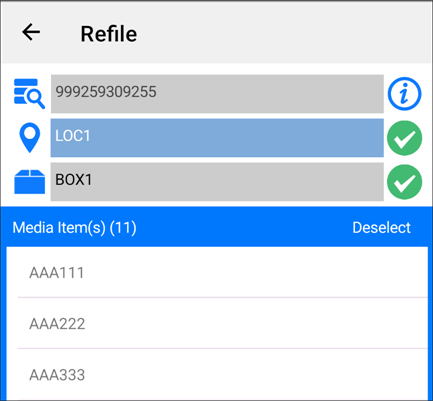
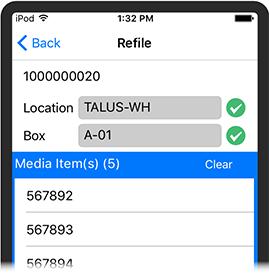
If the barcodes match the location in MobileMedia, the red x updates to a green check.
-
Scan the barcode of each media item listed for the box and place them in the box one at a time. MobileMedia removes the items from your box list as you scan.
-
When you have completed scanning all items for one box, a Box Completed message opens. Tap Ok.
The list for the next box populates on the screen. Continue the process until each item is refiled to the original location.
-
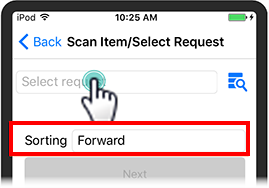
If you know the data request associated to the items you need to refile, tap Select request and select the data request from the list.
 Note:
Note:The data request must be at the In-Progress or Delivered status in Exploration Archives to populate in MobileMedia.
-
Select Forward or Backward in the Sorting field, depending on the direction you plan to begin. MobileMedia generates the list of items in sequential order according to the physical layout of your warehouse.
-
The barcodes for the original location of the first item display in the Location and Box field for you to locate.
The red x indicates that the location and box are ready for scanning.
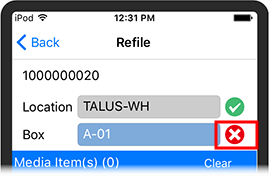
When you arrive at the physical location, scan the barcode for the location and box.
If the barcodes match the location in MobileMedia, the red x updates to a green check.
-
Scan the barcode of each media item listed for the box and place them in the box one at a time. MobileMedia removes the items from your box list as you scan.
-
When you have completed scanning all items for one box, a Box Completed message opens. Tap Ok.
The list for the next box populates on the screen. Continue the process until each item is refiled to the original location.