Select Version of EA Desktop:
Adding seismic to Exploration Archives typically involves cataloging and linking files through the Catalog module.
However, you can add a file outside of the cataloging procedure and link the file to seismic. This may be a more suitable approach if you're adding seismic and already have an affiliated contract.
Use the File module to add and link a file (such as a contract) to seismic:
-
Under Asset Management in the navigation panel, click File.
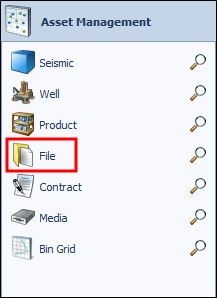
The File module opens.
-
In the File Properties panel, select NEW in the tool bar, or right-click to open the context menu then select New .
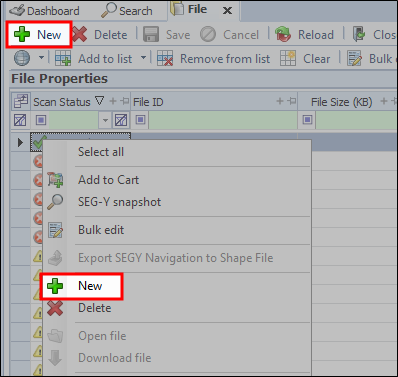
The Create file and link to seismic window opens.
The window is divided into 4 tabs:
-
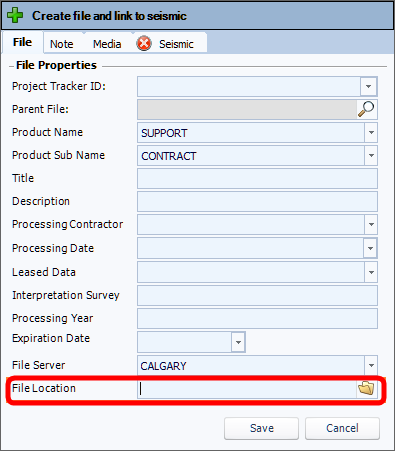
In the File tab, enter the file properties.
-
For File Location click browse and navigate to the file to add.
-
In the Notes tab, enter a note if applicable.
-
In the Media tab, the default is set to Do not Create/Link Media. To create or link media, select the appropriate options.
-
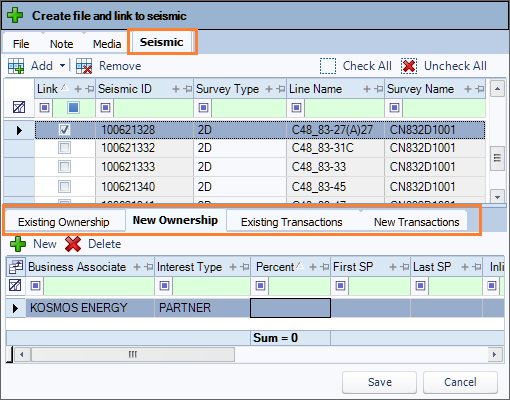
Click the Seismic tab.
-
To locate the seismic to link the file to, click the down arrow next to Add and select a search option.
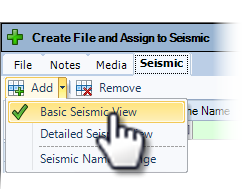
The search window opens.
-
Enter the search criteria then click Search. The search results appear in the grid.
-
In the Link Column, Select the checkbox of the seismic record.
-
In the lower grid, enter the ownership and transaction detail in the applicable tabs.
-
Click Save.
Adding seismic to Exploration Archives typically involves cataloging and linking files through the Catalog module.
However, you can add a file outside of the cataloging procedure and link the file to seismic. This may be a more suitable approach if you are adding seismic and already have an affiliated contract.
Use the File module to add and link a file (such as a contract) to seismic:
-
Under Asset Management in the navigation panel, click File.
The File module opens.
-
In the File Properties panel, right-click to open the context menu then select New .
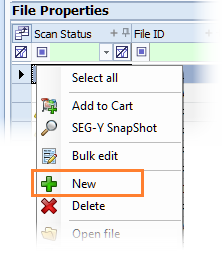
The Create file and link to seismic window opens.
The window is divided into 4 tabs:
-
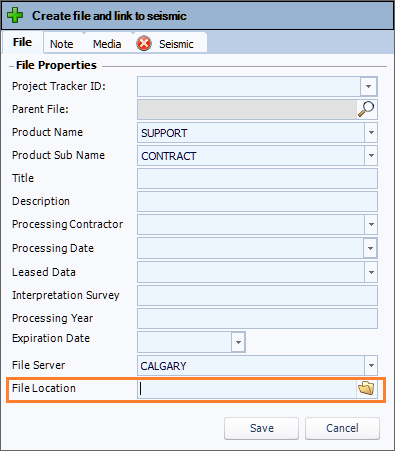
In the File tab, select the file properties.
-
For File Location click browse and navigate to the file to add.
-
In the Notes tab, enter a note if applicable.
-
In the Media tab, the default is set to Do not Create/Link Media. To create or link media, select the appropriate options.
-
Click the Seismic tab.
-
To locate the seismic to link the file to, click the down arrow next to Add and select a search option.
The search window opens.
-
Enter the search criteria then click Search. The search results appear in the grid.
-
In the Link Column, Select the checkbox of the seismic record.
-
In the lower grid, enter the ownership and transaction detail in the applicable tabs.
-
Click Save.