Select Version of EA Desktop:
Importing seismic using Excel requires specific formatting for the detail to import correctly to Exploration Archives. You can create the template directly from the Seismic module. For details on creating a template, see Create a Seismic import template.
To import seismic details from Excel:
-
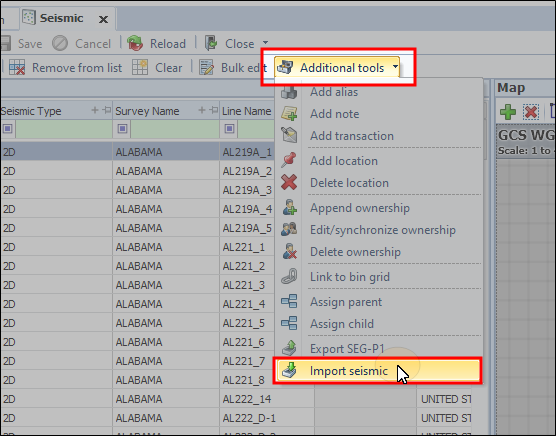
In the Seismic module, click Additional Tools>Import Seismic.
-
Navigate to the location of your spreadsheet.
-
Select the file and click Open.
-
During import, the system validates IDs. The validation outcomes include:
-
Seismic ID column omitted: system auto-generates line IDs.
-
Existing Seismic IDs: detail in the spreadsheet overwrites existing detail in Exploration Archives.
-
Invalid Seismic IDs: data will not import.
-
When the import is complete, review the items to ensure the data is accurate.
-
Correct any errors in the grid.
-
Click Save.
Importing seismic using Excel requires specific formatting for the detail to import correctly to Exploration Archives. You can create the template directly from the Seismic module. For details on creating a template, see Create a Seismic import template.
To import seismic details from Excel:
-
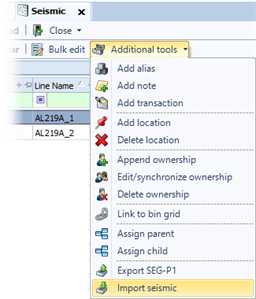
In the Seismic module, click Additional Tools>Import Seismic.
-
Navigate to the location of your spreadsheet.
-
Select the file and click Open.
-
During import, the system validates IDs. The validation outcomes include:
-
Seismic ID column omitted: system auto-generates line IDs.
-
Existing Seismic IDs: detail in the spreadsheet overwrites existing detail in Exploration Archives.
-
Invalid Seismic IDs: data will not import.
-
When the import is complete, review the items to ensure the data is accurate.
-
Correct any errors in the grid.
-
Click Save.