Select Version of EA Desktop:
When importing seismic using Excel, Exploration Archivesperforms validation checks on the data. When complete, a  displays next to any invalid data.
You must correct the errors before saving the data.
Locating and correcting errors
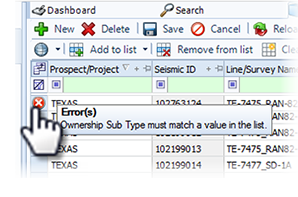
The “X” that displays in the leader column notifies you that the row has an error.
Hover over the “X” to display a tool tip that describes the error.
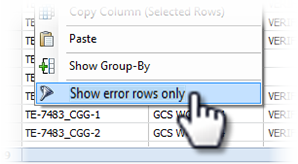
To filter the grid to display only rows that have errors, right-click on the grid and select Show error rows only.
Enter (or select) the correct information for each field. Click Save.
Correcting multiple duplicate errors
Rows might have errors duplicated. For example, a some rows may be missing information in a column thats required, or the syntax of data may be wrong.
This is where you can use Bulk Edit to replace the same information in multiple rows.
There are two methods to select rows that need to have errors corrected::
-
Right-click on the grid and select Show error rows only. Right-click and select Select all. To remove this filter, right-click and select Show all rows.
-
Use Bulk Mode to select rows:
- Click in the leader column and drag to select consecutive rows in the grid.
-
Hold Ctrl and click on rows that aren’t consecutive.
-
After selecting the rows, click Bulk edit on the toolbar.
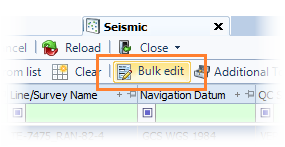
The Bulk edit window will open.
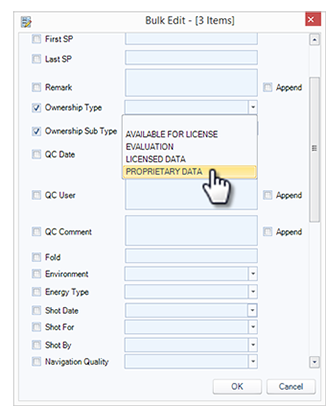
The windows displays the fields that you can enter information into and apply to the selected rows. -
Fill in the appropriate fields by typing or selecting values from drop-down lists
-
Click OK. The Bulk Edit window will close, and your changes will appear in the grid.
-
Once you have verified the data, click Save.
When importing seismic using Excel, Exploration Archivesperforms validation checks on the data. When complete, a displays next to any invalid data.
You must correct the errors before saving the data.
Locating and correcting errors
The “X” that displays in the leader column notifies you that the row has an error.
Hover over the “X” to display a tooltip that describes the error.
To filter the grid to display only rows that have errors, right-click on the grid and select Show error rows only.
Enter (or select) the correct information for each field. Click Save.
Correcting multiple duplicate errors
Rows might have errors duplicated. For example, a some rows may be missing information in a column thats required, or the syntax of data may be wrong.
This is where you can use Bulk Edit to replace the same information in multiple rows.
There are two methods to select rows that need to have errors corrected::
-
Right-click on the grid and select Show error rows only. Right-click and select Select all. To remove this filter, right-click and select Show all rows.
-
Use Bulk Mode to select rows:
- Click in the leader column and drag to select consecutive rows in the grid.
-
Press Ctrl and click on rows that aren’t consecutive.
-
After selecting the rows, click Bulk edit on the toolbar.
The Bulk edit window will open.
The windows displays the fields that you can enter information into and apply to the selected rows. -
Fill in the appropriate fields by typing or selecting values from drop-down lists
-
Click OK. The Bulk Edit window will close, and your changes will appear in the grid.
-
Once you have verified the data, click Save.