Select Version of EA Desktop:
The Notes tab is for adding files and notes to a license.
To add a file or note:
-
Open the Notes tab and click New. A new row adds to the grid.
-
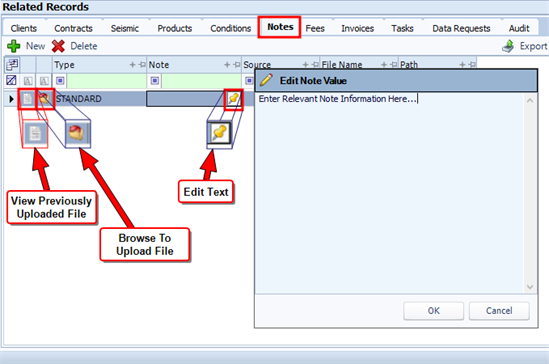
The leading columns of a row provide the option to click and browse for a file to upload or view a file (if already uploaded ).
-
If you are uploading a file, click browse and locate the file to upload.
-
Select the file and click Open. The file loads to the Notes grid with the File Name and Path included.
-
To manually enter a comment or instructions, hover over the Note cell and click Edit Text to open the text edit window. Enter the note and click OK.
-
Click Save in the main toolbar.
The Notes tab is for adding files and notes to a license.
To add a file or note:
- Open the Notes tab and click New. A new row adds to the grid.
- The leading columns of a row provide the option to click and browse for a file to upload or view a file (if already uploaded ).
- If you are uploading a file, click browse and locate the file to upload.
- Select the file and click Open. The file loads to the Notes grid with the File Name and Path included.
- To manually enter a comment or instructions, hover over the Note cell and click Edit Text to open the text edit window. Enter the note and click OK.
- Click Save in the main toolbar.