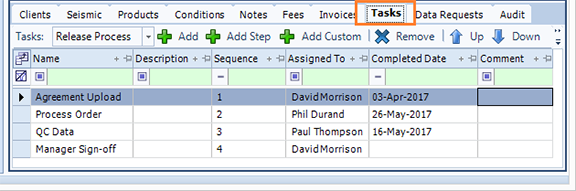
The Tasks tab for the License module is in the Related Records area.
Tasks provide visibility for managing user tasks. Users with permission can create and assign tasks as required for the catalog session data request.
Tasks for a typical catalog session data request are available in the predefined task list. Adding a predefined task, generates a list of the required steps to complete the catalog session data request. Using the toolbar, add, remove and reorder the steps as needed. Use the Add custom option for creating a custom steps. Use the Description field to add details of a task. In the Assigned To column, assign each task to the responsible party.
After completing a task step, the assigned user enters a date in the Completed Date column. To log additional information associated to a task step, the assignee can use the Comment column.
The Tasks feature automatically sends a notification to the assigned user in accordance with the system trigger. For example, the system may be configured to keep the task on hold until the catalog session data request is at a particular status. Once the first step is triggered, notifications send sequentially as each step is completed. Setting the completion date for task step triggers the notification for the next step.
Tasks toolbar functionality:
Add: Adds a task that includes a sequence of predefined steps. In the Tasks field, click the down arrow to view the tasks options. Select a tasks and click Add. The set of steps required to complete the task adds to the grid.
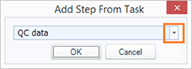
Add step: Adds an individual step from the predefined tasks. In the Tasks tab, from the Tasks field in the toolbar, select the task that has the target step. Click Add Step and the Add Step From Task window opens. Click the down arrow and select the associated step. Click OK. The task step adds to the grid.
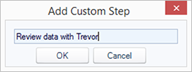
Add custom: Adds a custom step. Click Add custom to open the Add Custom Step window. Click in the entry field and enter a name for the step. Click OK.
Remove: Removes a step from the grid. Select the step in the grid. Click Remove. The step instantly removes from the grid.
Up and Down: Moves the task up or down in the sequence order. Select the task and click Up or Down to move the task step to a new location in the sequence. The task moves in the grid and the number in the Sequence column changes accordingly.
Complete all: Adds the current date to the Completed Date column for all tasks. Click Complete all and current date instantly adds to the Completed Date column.
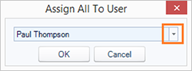
Assign all: Assigns all task steps to one individual. Click Assign all to open the Assign All to User window. Click the down arrow and select the assignee. Click OK. The Assigned To column updates for all task steps with the specified assignee name.
To assign individual task steps, select the assignee using the drop-down menu in the Assigned To column.