Select Version of EA Desktop:
The Clients tab of the Related Records is directly linked to the records in the Business Associate module.
When assigning a Client, the general information automatically generates from the existing business associate (BA) detail.
 To edit an existing business associate record...
Select the Client in the grid and click Open Selected. The business associate record opens in the Business Associate module. Edit as required and save.
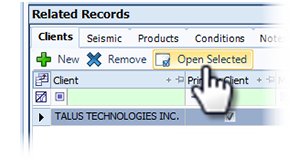
To assign a Client:
-
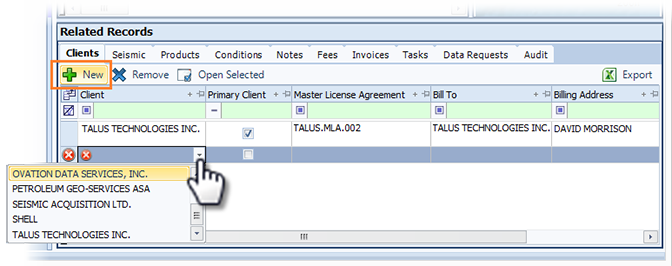
Open the Clients tab and click New. A new row adds to the grid.
-
In the Client column, click the down arrow to open the list of existing Client records. Locate the target Client and select. The Client name adds to the grid. The options available to select for the other columns become available according to the existing record.
 Note:
Note:If you are adding one Client, select the checkbox in the Primary Client column. If you are adding more than one Client, select one of the clients as the Primary Client.
-
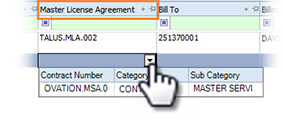
In the Master License Agreement column, click the down arrow and select the relevant agreement.
-
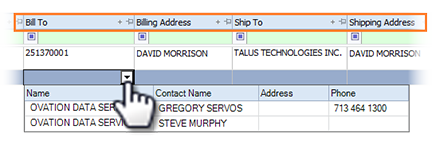
For the billing and shipping information, click the down arrow and select the correct information from the list.
-
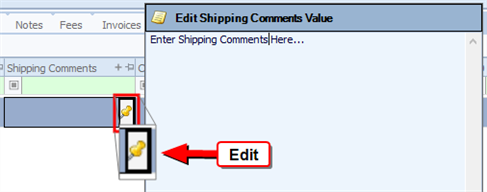
To add additional shipping information, hover over the Shipping Comments cell and click the Edit icon to open the text entry window.
-
Enter the relevant information and click OK.
-
Double-click on each of the remaining cells to activate, and enter the contact information, AFE, PO number and references number, as required.
-
When complete, click Save in the main toolbar.