Select Version of EA Desktop:
Use the selection tools available in the local menu bar for selecting features on the map. After selecting the features, click the Add button to add them to the Well Properties grid and view their details.
Click the drop-down and change your cursor to a selection tool to select features on the map.
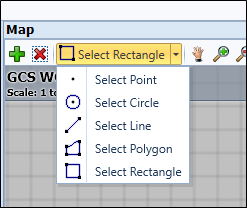
The Selection Tools available include:
-
Select Point: Use to select points.
-
Select Circle: Draws a circle or an ellipse, depending on how the mouse cursor is dragged after the initial click.
Note: The shape being drawn is not filled , it only displays the border.
-
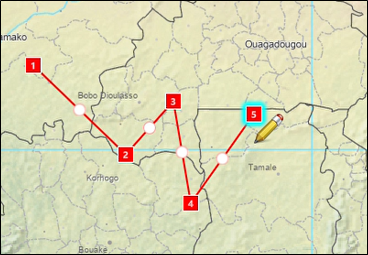
Select Polyline:Each placed vertex contains a sequential number representing the vertex index. The drawing is completed when an existent vertex is clicked, instead of requiring a double click.
.
-
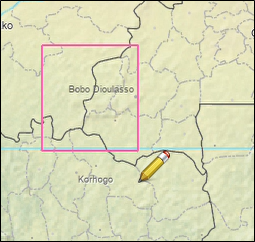
Select Rectangle: The rectangle is now transparent, displaying only the borders, similar to the Select Circle tool:
-
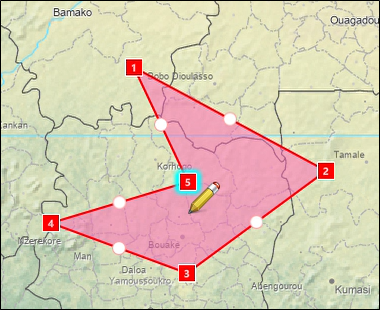
Select Polygon: After placing the polygon vertices, you can complete it by clicking again on an already placed vertex:
|
|
Add: To add seismic to the grid, select the target items on the map and click the Add button. Selected lines become highlighted. When added to the grid, the highlighting changes colour.
|
|
|
Clear Selected: Click the Clear Selected button to deselect items from the map.
|


Use the selection tools available in the local menu bar for selecting features on the map. After selecting the features, click the Add button to add them to the Well Properties grid and view their details.
Click the drop-down and change your cursor to a selection tool to select features on the map.
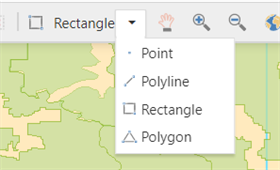
The Selection Tools available include:
- Point: Use to select points.
- Polyline: Use to select seismic within specified points. On the map, click the starting point of your target area. Click each point until your selected area is complete.
- Rectangle: Click and drag to draw a rectangle around the target lines.
- Polygon: Click and drag to draw a polygon around the target lines.
|
|
Add: To add seismic to the grid, select the target items on the map and click the Add button. Selected lines become highlighted. When added to the grid, the highlighting changes colour.
|
|
|
Clear Selected: Click the Clear Selected button to deselect items from the map.
|