Select Version of EA Desktop:
The Wellmodule can display your records on a map. You can search the map to locate Wells and add to your Well grid.
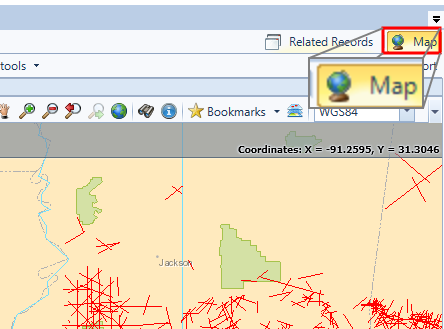
To open (or close) the map view, click Map in the menu bar.
To adjust the size of the viewing panel, click and drag the bar that divides the map view and the Well Properties grid.
To view the Map panel in a separate window, or move to an alternate monitor, click and hold in the header of the panel and drag to float.
Use the map toolbar
The Map includes a variety of navigational and selection tools for searching and viewing your data.

To activate a tool, click the item in the toolbar.
The Wellmodule can display your records on a map. You can search the map to locate Wells and add to your Well grid.
To open (or close) the map view, click Map in the menu bar.
To adjust the size of the viewing panel, click and drag the bar that divides the map view and the Well Properties grid.
To view the Map panel in a separate window, or move to an alternate monitor, click and hold in the header of the panel and drag to float.
Using the map toolbar
The Map includes a variety of navigational and selection tools for searching and viewing your data.
To activate a tool, click the item in the toolbar.

|
Add: Use the Select tool to select seismic on the map. Click Add and the seismic adds to the Seismic grid. |

|
Deselct: Deselect all features that are currently selected on the map. |
|
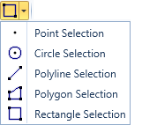
Select: Click to open the selection options. Using the selection tool, click on, or draw around, items on the map to select. |
|
|
Pan: Click and drag to pan the map. Double-click to zoom in slightly. |

|
Zoom in: Draw an area on the map to zoom the view to the specified extent. |

|
Zoom out: Draw an area to quickly zoom out. |

|
Previous extent: Click to go back to the previous extent. |

|
Next extent: After clicking to load to a previous extent, click Next extent to go forward again. |

|
Full map: Click to expand the view to the full extent of the map. |

|
Search: Click to open a Search window. For more information see Search the map in Desktop. |

|
Identify: Identify the features of particular items on the map. |

|
Bookmarks: Create or select a bookmark for quick navigation to map locations. |

|
Layers: Click to open the layers legend. In the layers legend, select and deselect to display different map layers. The map layers you select save to your profile for the next time you open the Map. |

|
CRS: Specifies the coordinate reference system (CRS) for the map. If more than one CRS is configured, a drop-down menu is available with other options. |

|
Refresh: Click to refresh all map layers and data sources. |

|
Log: Click to open a log of your actions. This log is useful for troubleshooting map issues. |

 . For more information see